Stock trading
Place real orders for US stocks through your connected brokerage.
Find it at: Stock Trade in the left menu on the web (/stock-trade/<symbol>); the Stock view of the Trade tab in the mobile app.
1. Prerequisites
Before you can place a stock order, you need a brokerage account connected to Alphio. Robinhood connects directly; seven other brokers connect through SnapTrade.
See Connect your broker for the full flow. Once connected, your balance and positions appear on your account page and trading is enabled.
2. Placing an order
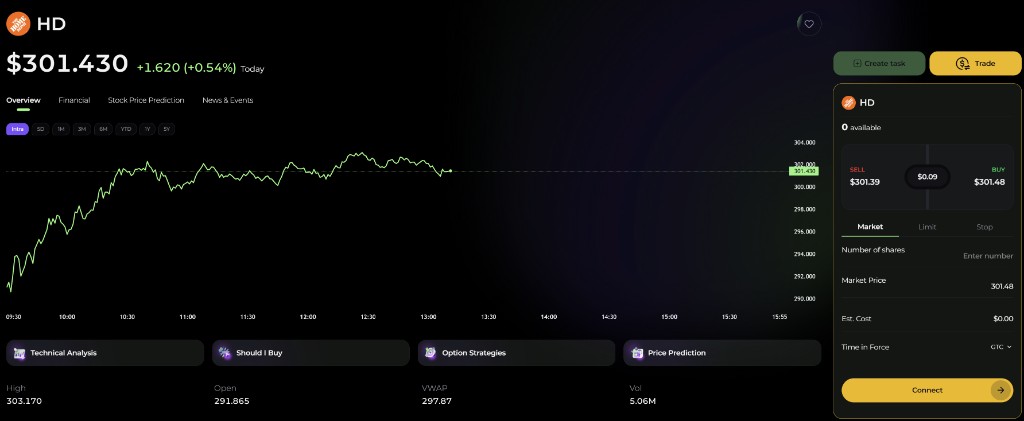
Use the stock order ticket — the Trade panel in the right column of a stock page under Stock Trade, or the trade action on a signal card.
In the ticket you choose the broker account, Buy or Sell, the order type (Market, Limit or Stop), the time in force (GTC, DAY, IOC or FOK), and the number of shares.
3. Order types
Market, Limit and Stop orders are supported, with GTC, Day, IOC and FOK time-in-force. Exactly which combinations your broker accepts depends on the broker.
For a fuller breakdown of what each order type does, see Order types.
4. Order flow
A stock order has two steps:
- Check. Alphio asks your broker to validate the order — buying power, fractional support, market hours, symbol validity. The broker returns an estimated price and fees.
- Confirm. You review the estimate and confirm, and Alphio submits the checked order. Submitted means your broker accepted it; an order placed outside regular market hours fills when the market opens.
You can tick Skip preview to send the order in one step. Some brokers don't support preview at all, in which case the order is always placed directly.
If the check fails — insufficient buying power, market closed for that symbol — the ticket shows your broker's error message and the order is never submitted.
5. Cancel
For working orders (not yet Filled, Rejected or Cancelled), you can cancel from the Orders tab on your account page, or from that order's detail page.
Alphio asks your broker to cancel. If the broker accepts, the order moves to Cancelled. If part of the order has already filled, only the unfilled portion cancels.
Amending an existing order is not supported — cancel it, then place a new one with the parameters you want.
6. Order history
Two surfaces are available:
- Orders — orders from the last 24 hours, shown on your account page and refreshed as your broker sends status updates.
- Order History — paginated history per connected account, for paging back through older activity.
Each entry links to a detail page showing the full order parameters, your broker's lifecycle events, and any associated fees.
7. What you can trade here
This rail covers US stocks. ETF pages, Hong Kong stocks, forex pairs, spot metals and crypto quote pages have detail pages and quotes on Alphio but no stock order ticket — see Supported assets.
This page is available as plain Markdown at https://alphio.ai/docs/trade/stock-trading.md. An index of every page, with a one-line summary each, is at https://alphio.ai/docs/llms.txt.