Subscription and Billing
Manage your Alphio subscription — change, cancel, pause, or reactivate your plan, review your orders, and open the Stripe billing portal — from the Plan & Billing page.
Find it at: /account/billing (web: avatar menu → Billing & Usage; app: Profile → Billing). Plans are compared and bought on the Subscription page, /account/subscription (app: Profile → Pricing Plan).
1. Tiers
Alphio has 6 tiers — Free, Basic, Plus, Pro, Elite, Enterprise — each unlocking a defined feature set, Credits allowance, and Signals access. Enterprise is arranged through Contact Sales rather than bought online.
See Subscription tiers for the full plan comparison and prices.
2. What the Plan & Billing page shows
| Section | What it shows |
|---|---|
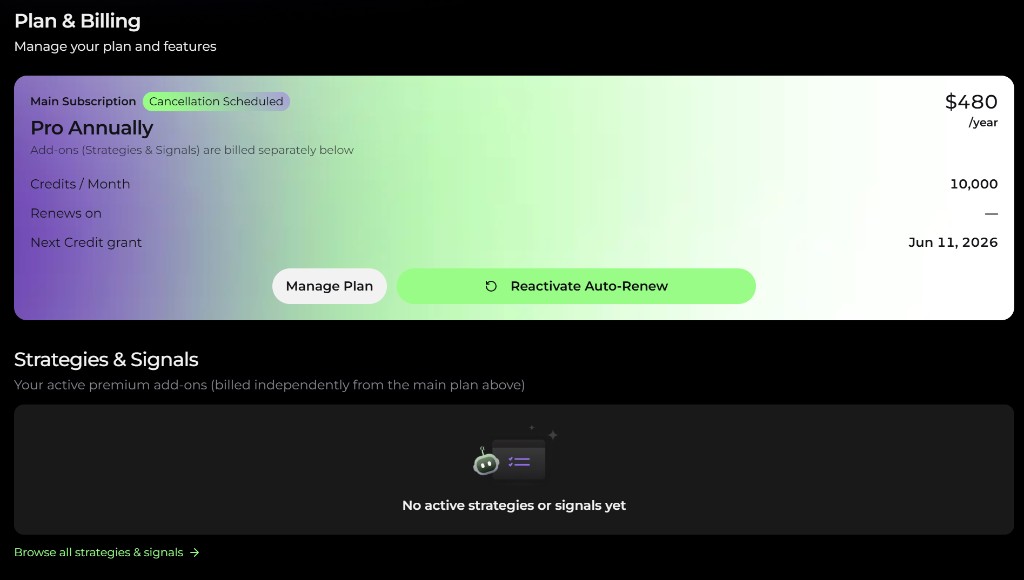
| Current plan | Plan name and status (Active, Trial, Cancellation Scheduled, Paused…), price, Monthly credits and the next credit grant date, order time, and the renewal date with the next charge amount. Buttons: Manage Plan, Upgrade Plan, Cancel Plan or Reactivate Auto-Renew. |
| Add-ons | Strategy add-ons you subscribe to. They're billed separately from the main plan. |
| Credits | Remaining Credits by source (Free / Plan / Purchased / Bonus). See Credits system. |
| Usage | Credits spent over the last 7, 30, or 90 days. |
| Orders | Checkout history — see section 8. |
| Credits activity | This month's Credits earned and spent. |
If a renewal payment fails, a Payment failed — your plan benefits are paused card appears at the top. Alphio keeps retrying the charge over the next few days; update your payment method to resume immediately, or cancel to stop future charges.
3. Upgrading and downgrading
Pick the target plan and billing interval on the Subscription page. For web (card) subscriptions, Alphio previews the change before you confirm:
- Upgrade — you're charged the prorated difference now, and the new tier's entitlements and Credits apply right away.
- Downgrade — the change takes effect at the end of the current period; you keep your current entitlements until then.
- The preview also shows your next billing amount and date.
Platform-specific limits:
- App Store / Google Play subscriptions can only be changed in the store — on the web the buttons read Manage in App Store / Manage in Google Play.
- Crypto (MoonPay) subscriptions don't support plan changes — let the plan expire and subscribe to the new one.
- A subscription received as a reward can't be changed until it expires.
4. Cancel and reactivate
Choose Cancel Plan on the Plan & Billing page. The cancel flow can show, in this order:
- A discount offer — a percentage off your next billing period, if one is available for your plan.
- A short survey about why you're leaving.
- A pause offer — see section 5 (only for plans that can be paused).
- Confirmation — showing your current plan and the date you keep access until.
After cancelling, your subscription runs until the end of the current paid period and then won't renew; you drop to Free.
- Reactivate — before the period ends you can undo a cancellation with Reactivate Auto-Renew; auto-renewal resumes on the same plan.
- App Store / Google Play — cancel in the store (iOS Settings → Apple ID → Subscriptions, or Play Store → Subscriptions).
- MoonPay — cancellation is completed in MoonPay's management page and is irreversible — you can't reactivate, only subscribe again.
5. Pause and resume
Instead of cancelling, a monthly card subscription can be paused for 3 months:
- Your plan stays active until the end of the current paid period. After that, billing stops for three months and your plan benefits pause; your watchlists, strategies, trading tasks, and history are kept.
- Billing resumes automatically after the three months. You can Resume now any time from the Plan & Billing page.
- Pausing isn't available for annual plans, during a trial, or for App Store / Google Play or crypto (MoonPay) subscriptions.
6. Payment methods
| Method | Where | Notes |
|---|---|---|
| Card (Stripe) | Web; some app users | Card, Apple Pay, and Google Pay. Change or cancel anytime. Manage Plan opens the Stripe billing portal. |
| Card (Paddle) | Web, for some accounts | Alphio picks the card processor at checkout. Manage Plan isn't shown for Paddle subscriptions; use Cancel Plan to cancel. |
| Crypto (MoonPay) | — | Not currently offered at checkout. Existing crypto subscriptions can't change plans and are managed through MoonPay's management page. |
| Apple App Store | iOS app | Managed by Apple. |
| Google Play | Android app | Managed by Google Play. |
If you already have a subscription, buying more of the same kind continues on the same payment provider.
7. Stripe billing portal
For operations Alphio doesn't surface directly — managing saved cards, viewing Stripe invoices, updating billing details — Manage Plan opens the Stripe billing portal for your subscription in a new tab. Changes there sync back automatically.
The portal is Stripe-only. Paddle, App Store / Google Play, and MoonPay subscriptions are managed through their own platforms.
8. Orders
The Orders section lists your checkout history:
- Date — date and time (UTC).
- Action — the plan or product purchased, its status (Paid / Unpaid / Expired), and the payment provider.
- Transaction ID — with a copy button; quote it when you contact support.
- Total — the amount charged.
There's no PDF download in the Orders list. For Stripe invoices, use the Stripe billing portal.
9. Custom Credits
Buy Credits separately from the subscription cycle on the Top-Up Credits page. Custom Credits land as Recharge Credits, which roll over between billing cycles and stay valid for 1 year from purchase. Top-ups require an active paid plan and aren't available during a trial.
For more on one-off Credits purchases, see Custom credits.
This page is available as plain Markdown at https://alphio.ai/docs/account/subscription-and-billing.md. An index of every page, with a one-line summary each, is at https://alphio.ai/docs/llms.txt.