How to chat with Alphio AI
Talk to Alphio AI in plain language to research markets, review positions, set up alerts and scheduled tasks, and create trading tasks that you confirm before they run.
Try the demo below:
Find it at: Agent in the left sidebar on web (/chat), the Tasks tab on mobile web, or the round Agent button in the middle of the app's bottom bar.
1. Starting a conversation
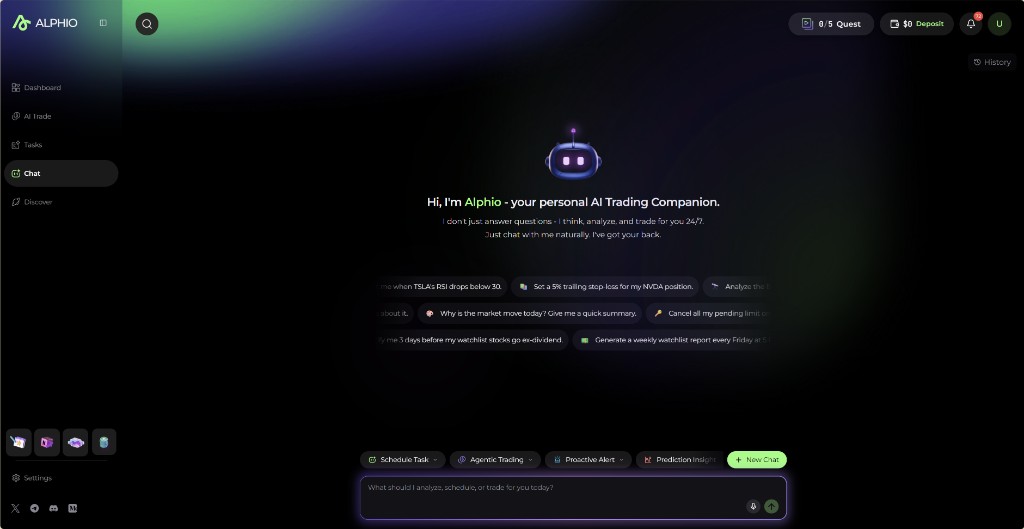
Chat and your tasks share one page. When you open Agent with no conversation selected, the page shows your Scheduled Tasks and a Recommended list (see Agent tasks); as soon as you send a message, the same page turns into the conversation.
Ways to start:
- Type in the input box at the bottom of the Agent page. Press Enter to send (Shift+Enter for a newline).
- Pick a Recommended prompt. Clicking one fills the input box with that prompt; nothing is sent until you press send.
- From an asset page. On a stock, crypto, or perpetuals detail page, open AI Analysis in the right-hand panel to ask about that asset; the answer appears inside the panel.
Each new conversation is saved as a session you can return to later.
2. What you can ask
Alphio AI handles five broad categories of conversation. Examples below are representative - phrase them however you like.
| Category | Example prompt |
|---|---|
| Research | "Tell me about NVDA's last earnings." |
| Analysis | "Is BTC overbought right now?" |
| Comparison | "Compare AAPL vs MSFT cash flow over the last 4 quarters." |
| Trade intent | "Buy 0.1 BTC when RSI drops below 30." |
| Alerts and schedules | "Alert me when SOL hits 200." / "Every weekday at 8am ET, give me a pre-market brief." |
How the last two categories behave:
- Trade intents become a trading task. Alphio AI drafts the order (asset, side, size, trigger) as a preview card in the chat. Nothing is placed until you confirm the card — for example with Execute Plan or Slide to Confirm. After you confirm, the task runs on its own and places the resulting orders through your connected account without asking again. Stock trades need a connected broker; if none is connected, the card asks you to connect one first. See Tasks and strategies.
- Alerts and schedules become a background task that keeps running after you leave the page. See Agent tasks, Price alert, and Scheduled analysis.
3. Sessions
Every conversation is stored as a session.
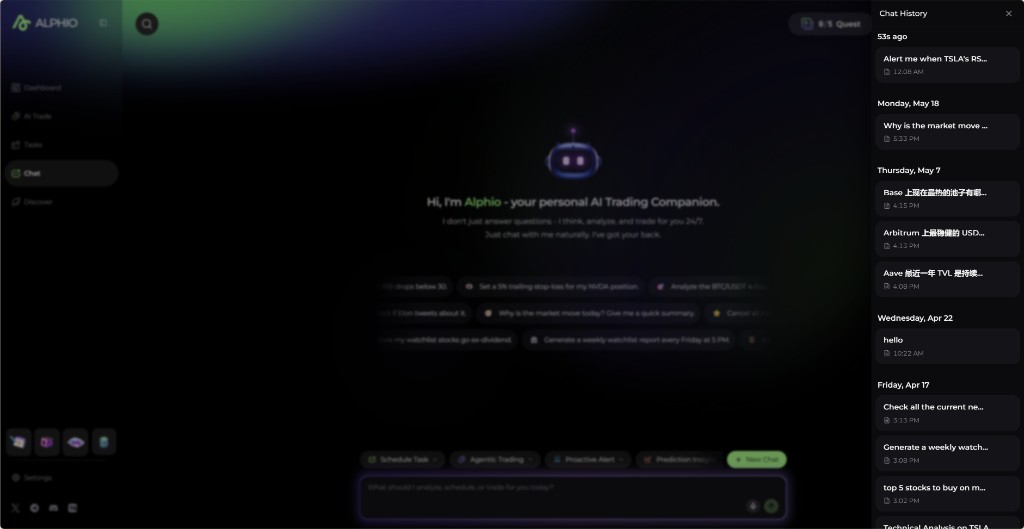
- Open the history. Click History in the top-right of the Agent page. The Chat History drawer slides in from the right on desktop and from the bottom on mobile.
- Switch sessions. Sessions are grouped by recency. Click any row to jump into it.
- Rename. Open the row's menu, choose Rename, type a new title, and press Enter.
- Delete. Open the row's menu and choose Delete. You'll see a confirmation prompt.
- Start a new chat. Click the New Chat pill next to the input bar.
4. Quick actions
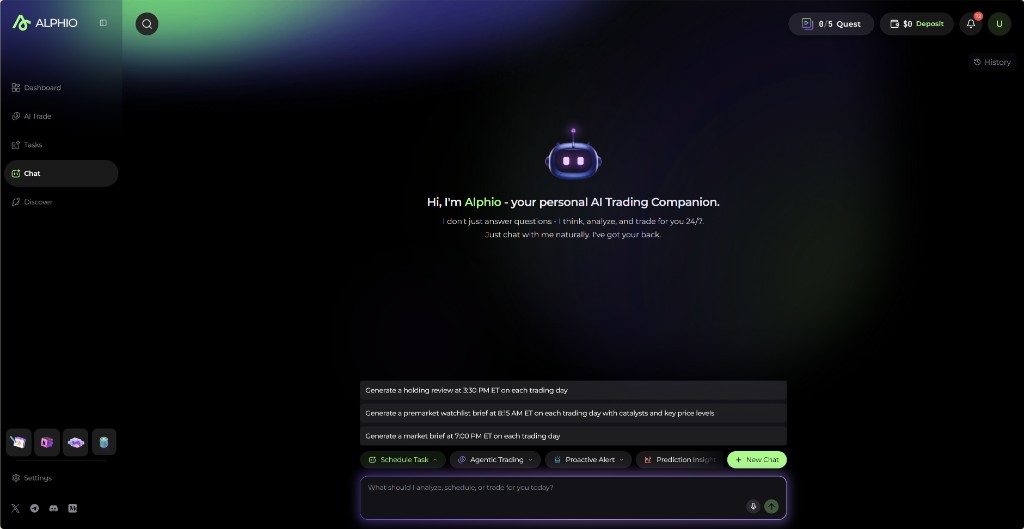
The chips next to the input box are pre-built prompts that save typing for common asks. They're configured server-side, so the exact list may change.
- Single-prefix chips. Click once - the prefix drops into the input and you finish the sentence.
- Multi-prefix chips. Click to expand a popover with several phrasings; pick one to fill the input.
- Ticker-bound chips. Some chips open a symbol search first, so you pick the stock or coin and Alphio AI builds the full message.
- More. Chips that don't fit in the row are under More.
5. Voice input
When your browser supports speech recognition, a microphone button appears next to the send button.
- Hold to speak. Press and hold the mic; release to stop. A live overlay shows the volume meter and the partial transcript as you talk.
- Continuous append. If the input already has text, the transcribed words are appended after a space - useful for dictating long prompts in chunks.
- Language. Recognition language follows your current Alphio interface language.
6. Rating and sharing answers
Every Alphio AI reply has an action row beneath it.
- Copy. Copy the full answer to your clipboard.
- Dislike. Opens a popover where you can leave an optional note explaining what went wrong. Your feedback is sent to the team to improve future answers.
- Share. Opens a share dialog where you can Copy Link, Download a poster image of the answer, or Share on X. The link opens a read-only snapshot of the conversation that anyone can view without signing in, and it stays valid for 7 days.
This page is available as plain Markdown at https://alphio.ai/docs/chat/how-to-chat.md. An index of every page, with a one-line summary each, is at https://alphio.ai/docs/llms.txt.