Skills
Skills let you extend Alphio agents with reusable workflows for research, execution, and content tasks, then call them from chat with /.
Find it at: /skills?tab=skill — the Skills tab of the Connectors page (the other tab, Brokers, is for broker connections). In chat, type / at the start of the message box and choose Browse Skills when you have none installed. On mobile web, Skills is in the bottom bar.
The number of skills you can install depends on your plan: Free 2, Basic 5, Plus 5, Pro 10, Elite 15, Enterprise 15. See Subscription tiers.
1. Skill Marketplace
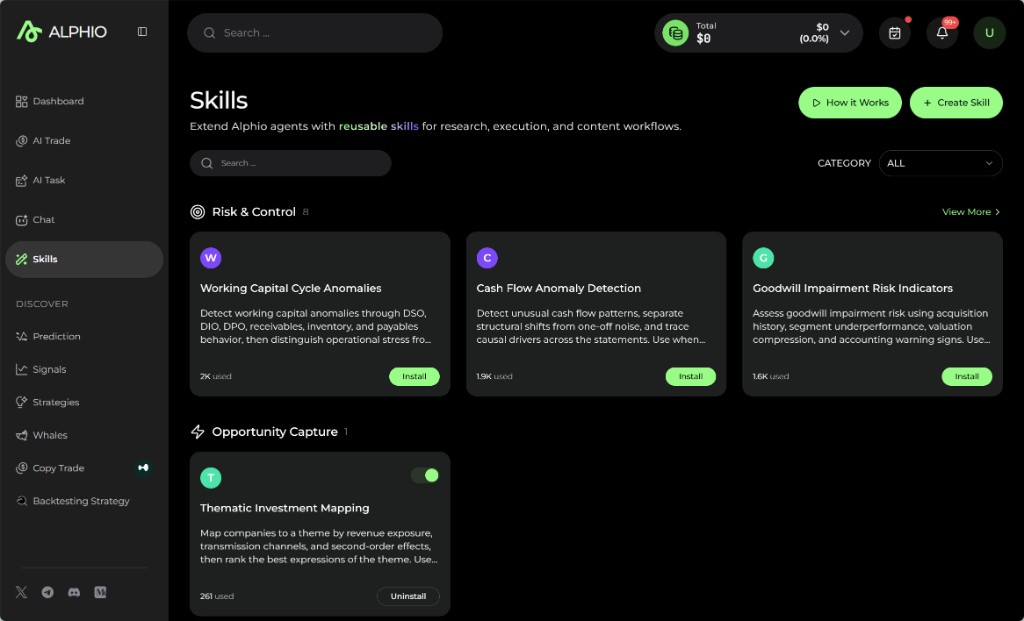
The Skills tab works like a marketplace for reusable agent capabilities.
At the top, you can:
- open How it Works
- click Create Skill
- search by skill name
- filter by Category
By default, skills are grouped by category, with a few cards per group and View More to see the rest. Choosing a category or searching switches to a flat grid.
Each skill card shows:
- skill name and short description
- category tag
- how many times it has been installed (shown as "used")
- Install or Uninstall, plus an on / off toggle once installed
2. Category filtering
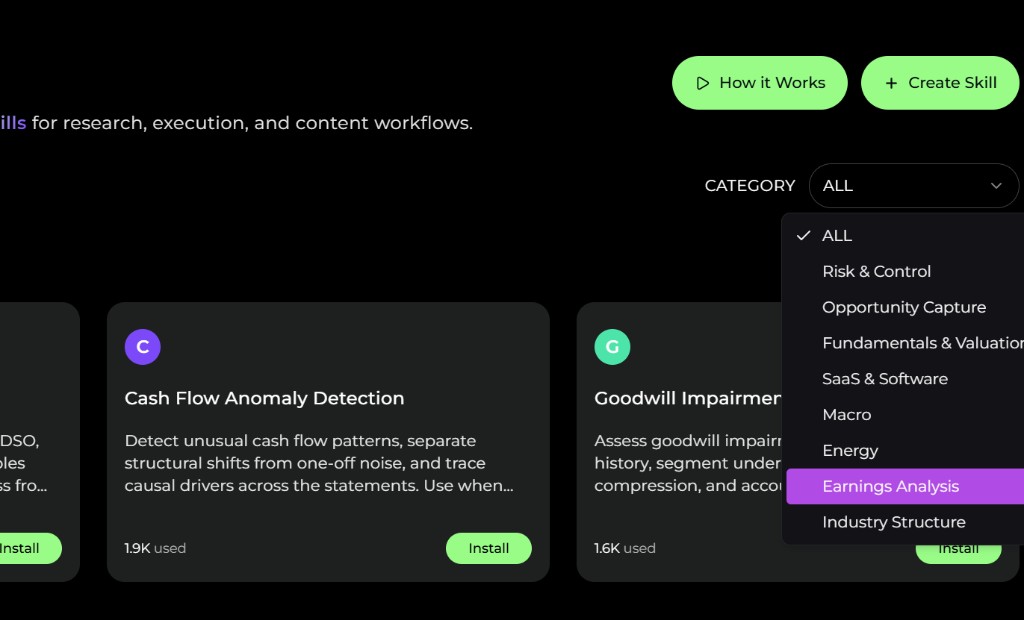
The category filter narrows the marketplace to one area of work. Categories are:
- Risk & Control
- Opportunity Capture
- Fundamentals & Valuation
- SaaS & Software
- Macro
- Energy
- Earnings Analysis
- Industry Structure
- Market Data
- Trading Automation
3. Installing and managing a skill
Installing a skill makes it available in your chat.
- Install — add the skill to your set
- Uninstall — remove it
- the toggle — pause or resume an installed skill without uninstalling it
Every installed skill counts toward your plan's install limit, including paused ones. When you reach the limit, Alphio shows Skill limit reached and offers an upgrade — or uninstall a skill you no longer use to free a slot.
A common workflow is:
- browse by category
- install a few relevant skills
- try them in chat
- keep only the ones you actually use
4. Using skills in chat
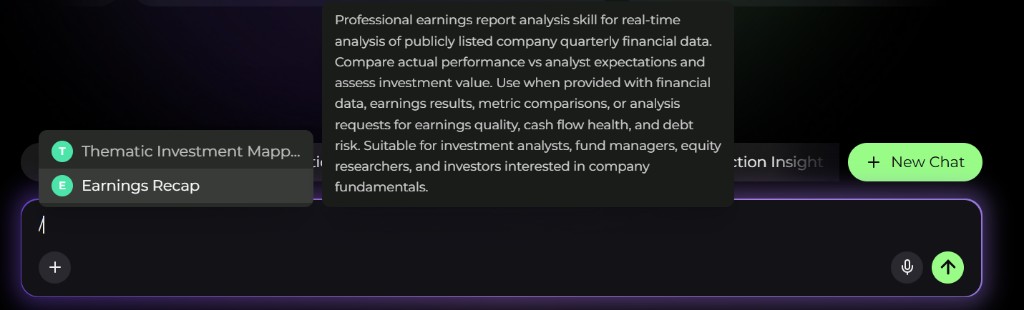
Installed skills are called from chat.
Type / at the start of the message box. Alphio opens a skill menu listing your installed skills (skills you created are marked Mine); hover over one to see its description. Pick one, and it is inserted as a chip at the front of your message — then add your ticker or question.
For example, choose /Earnings Recap and then type NVDA last quarter.
You can use one skill per message.
5. Skill output in chat
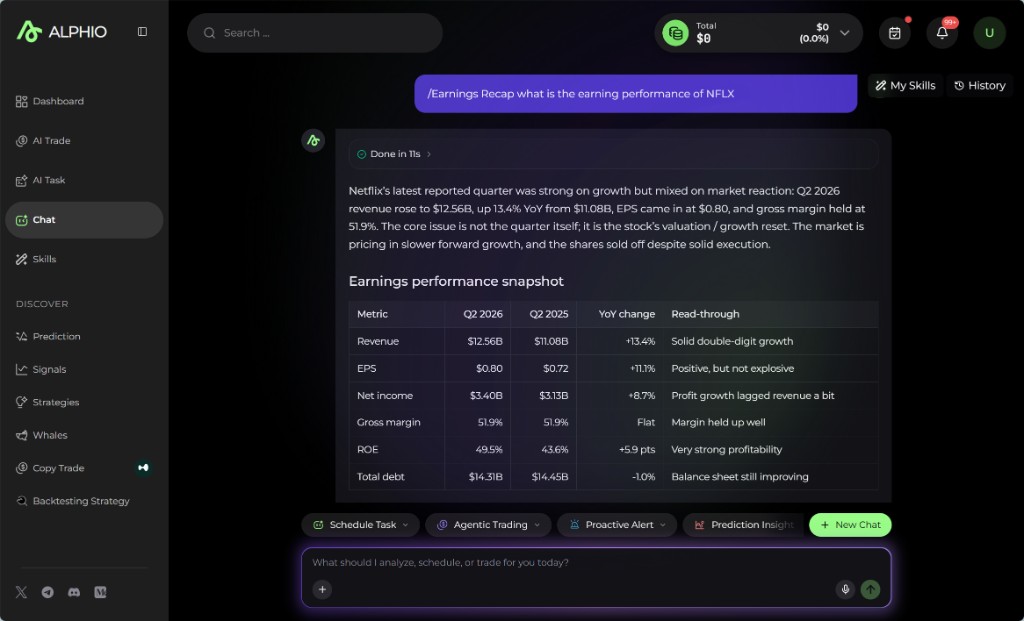
Once selected, the skill runs inside the normal Alphio chat workflow, so the result can still come back as a written summary, structured tables, comparative metrics, or follow-up prompts.
Skills do not replace chat. They sharpen it by applying a more specialized workflow to the request.
In the example below, an earnings skill returns a concise analysis plus a structured earnings snapshot table.
6. Creating your own skill
Click Create Skill and fill in:
- Name (required)
- Category (required)
- Description
- What it does, Best for, and Example prompt
- Skill content (required) — the instructions the skill follows
A new skill is visible only to you, and it works only after you install it like any other skill. You can submit a skill for publishing to the marketplace; submissions are reviewed first.
7. My Skills
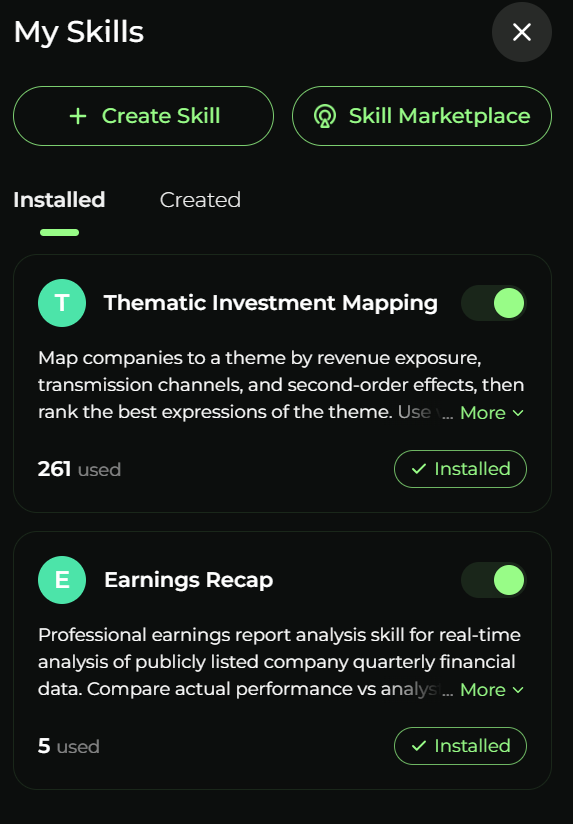
On mobile web and in the app, My Skills lists your skills under Installed and Created, with shortcuts to Create Skill and the Skill Marketplace. Created skills show a status such as Draft, Private, In Review, Published, or Rejected. On the PC web app, manage your skills from the Skills tab instead.
8. How to use Skills well
- Open Skills and search or filter by category.
- Install one or two skills that match your current workflow — keeping your plan's limit in mind.
- Open chat and type
/at the start of the message to call the skill. - Add the symbol, company, or analysis question you care about.
- Review the result and keep iterating in chat if needed.
- Uninstall skills you no longer use to free up slots.
This page is available as plain Markdown at https://alphio.ai/docs/research/skills.md. An index of every page, with a one-line summary each, is at https://alphio.ai/docs/llms.txt.