Connect Telegram
Bind your Telegram account so Alphio can send notifications to your phone and you can chat with Alphio AI from Telegram.
Find it at: web — avatar menu → Setting → Telegram → Connect (or open /connect/telegram); mobile web — Settings → Telegram; app — Settings → Manage Telegram Connection, or the Telegram button on a signal page.
1. What Telegram is used for
Once bound, Telegram does two things:
- Receives notifications. Alphio pushes notifications to the Alphio bot chat for the categories you switch on.
- Lets you chat with Alphio AI. Messages you send to the bot go to Alphio AI, and its replies are saved in a chat session on your account. You can ask questions and set up alerts or scheduled tasks from there.
Bot commands:
| Command | What it does |
|---|---|
/new | Starts a new chat session |
/balance (or /quota) | Shows your Credits balance |
/unbind | Sends you a link to disconnect Telegram |
2. Which notifications go to Telegram
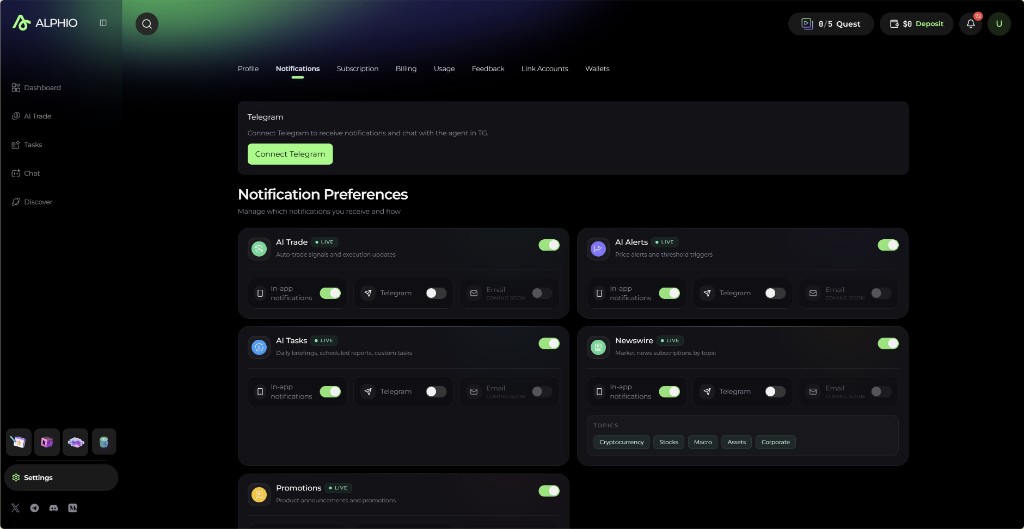
Telegram delivery is set per notification category in your notification settings. It is off by default — binding your account isn't enough; switch on the Telegram channel for each category you want.
| Category | What it covers |
|---|---|
| AI Trade | Trading signals and execution updates from your trading tasks |
| AI Alerts | Price and threshold alerts |
| AI Tasks | Daily briefings, scheduled reports, custom tasks |
| Square | Replies, mentions, new followers, and likes |
| Newswire | Market news subscriptions by topic |
| Promotions | Product announcements and promotions |
Alerts and scheduled tasks can also be sent to Telegram individually: ask for it when you create them ("Telegram me when BTC crosses $120,000"). See Price alert.
Each message delivered to Telegram consumes a small amount of Credits. In-app delivery is free.
3. How to bind
- Click Connect (or Connect Telegram). Alphio generates a one-time binding link to the Alphio bot. On the full binding page you can first choose which chat session Telegram should continue (Bind to chat), or start a New Chat Session.
- Open the link (
telegram.me/<bot>). Telegram opens a chat with the Alphio bot. - Tap Start in Telegram. The bot receives the binding command automatically.
- Back in Alphio, the status changes to Connected. If it doesn't update, click I'm done.
The link expires after a few minutes — a countdown is shown. If it runs out, generate a new one with Regenerate or Try Again.
4. Binding states
| State | Meaning | What to do |
|---|---|---|
| Not connected | No Telegram account is linked | Click Connect Telegram |
| Open Telegram to confirm | A link was generated and Alphio is waiting for the bot to confirm | Open the link and tap Start in Telegram |
| Binding link expired | The link wasn't used in time | Click Try Again to get a new link |
| Connected | Telegram is linked | Turn on the categories you want in notification settings |
| Disconnected | Telegram was unbound | Click Connect again to rebind |
5. Disconnect
- Open the Telegram row in Setting (or the binding page).
- Click Disconnect and confirm with Yes, disconnect.
Alphio stops sending you notifications and stops responding to your messages in Telegram. Your alerts and tasks keep running and keep delivering in-app. You can reconnect later — to the same Telegram account or a different one.
The Alphio community channel
telegram.me/AlphioAIis separate from the notification bot — see Get Support.
This page is available as plain Markdown at https://alphio.ai/docs/get-started/connect-telegram.md. An index of every page, with a one-line summary each, is at https://alphio.ai/docs/llms.txt.