ARK Grid Trade Tutorial
ARK Grid Trade follows ARK Invest's trade disclosures, first judges whether the net signal for a stock is a buy or a sell, then places grid limit orders in that direction in your own broker account.
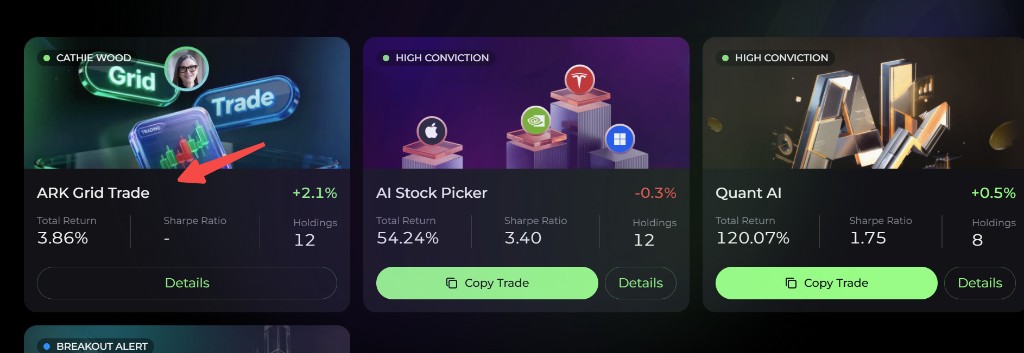
Find it at: /ark-copy-t — or click the ARKK Grid Trade card in the Copy Stock Signal row on the home page (Dashboard). ARK Grid Trade is currently available on the web app only; the mobile app does not show the card yet.
Browsing the signals is open to any signed-in user. Creating a grid strategy requires Pro and above (Plus is not enough). See Subscription tiers.
1. What it is
ARK Grid Trade copies Cathie Wood / ARK fund activity into a rules-based grid, instead of mirroring every fill one-for-one.
For each ticker, Alphio reads ARK's latest disclosures, decides the signal direction, and turns that direction into grid limit orders:
- Net Buy — enable lower buy grids below the current price
- Net Sell — enable upper sell grids above the current price
- Hold — conflict or zero net — when the funds disagree or the buys and sells cancel out, the signal is frozen and no new strategy can be created from it
The strategy is useful when you want ARK's directional bias but prefer staged limit orders over chasing the last disclosed print.
2. Core rule: direction first, then grids
The product always does the same two things in order.
- Judge the ARK signal direction. Disclosures from the ARK funds are combined into one Combined Signal such as Net Buy or Net Sell. How conflicts are handled depends on the Same-day Signal Merge setting you pick (see Step 1 below).
- Set grid limit orders from that direction. Buy-side signals enable lower buy grids. Sell-side signals enable upper sell grids.
| Combined signal | Strategy action | What the grid does |
|---|---|---|
| ARK Buy / Net Buy | Enable lower buy grids | Hang buy orders below the current price |
| ARK Sell / Net Sell | Enable upper sell grids | Hang sell orders above the current price |
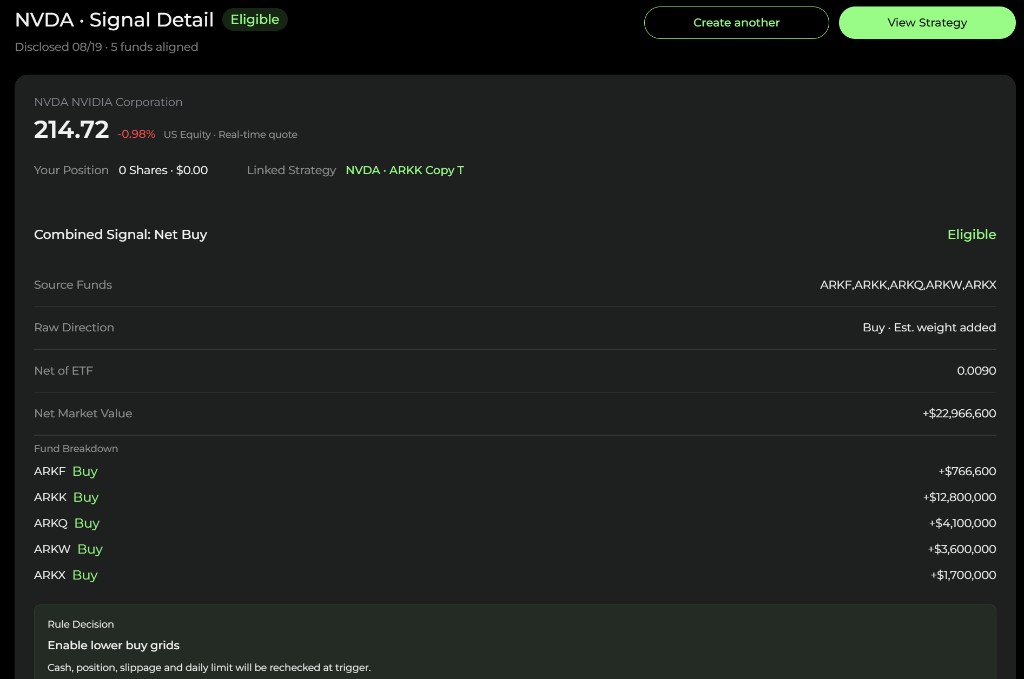
Cash, existing position, slippage, and daily risk limits are rechecked at trigger. A published signal does not guarantee that every grid level will fill. Grid orders are day limit orders: anything unfilled at the close is cancelled and placed again the next trading day.
When a signal expires or freezes, the strategy stops opening new grid positions, but the paired orders for grid levels that already filled stay in place.
3. Signals tab: read the ARK disclosures
The ARK Grid Trade page has two tabs: Signals and My Strategies.
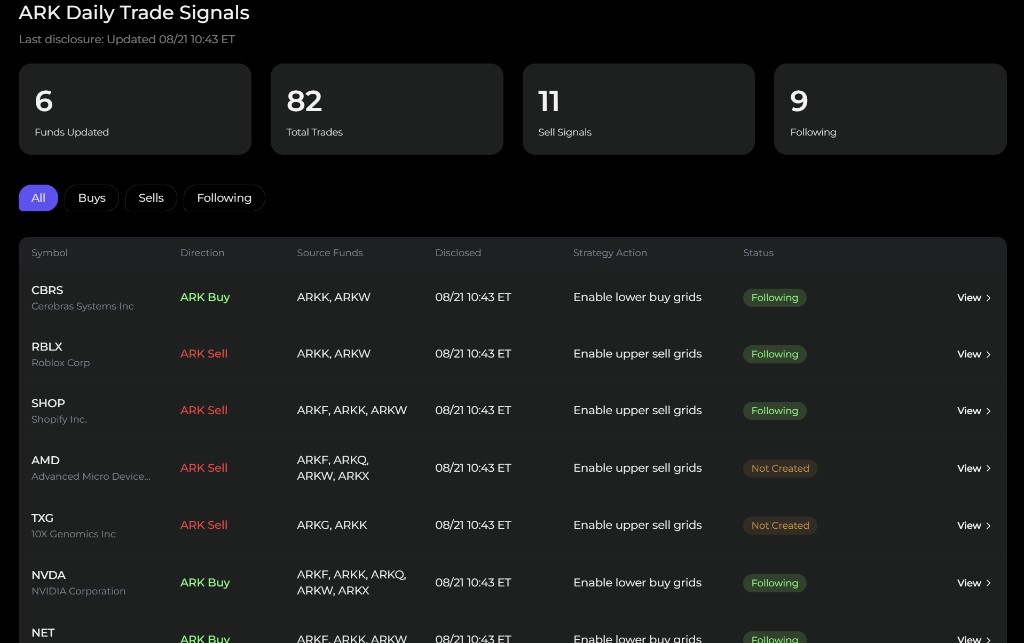
The Signals tab shows summary cards (funds updated, total trades, buy and sell signal counts), an All / Buys / Sells filter, and a list with these columns:
- Symbol — the stock being disclosed
- Direction — ARK Buy or ARK Sell
- Source Funds — which ARK ETFs reported the trade
- Disclosed — when the latest disclosure landed
- Strategy Action — the grid response that follows the direction
- Status — Created if you already have an active strategy on that ticker, or Not Created if you have not set one up yet
Click View on a row to open the signal detail, which shows the Combined Signal breakdown and the Create Strategy button.
4. How to create a strategy
Creating an ARK Grid Trade is a 3-step wizard followed by an Execution Preview. Start it from a signal's detail page with Create Strategy — the ticker comes from that signal. On the web, a Live Preview panel updates as you change settings.
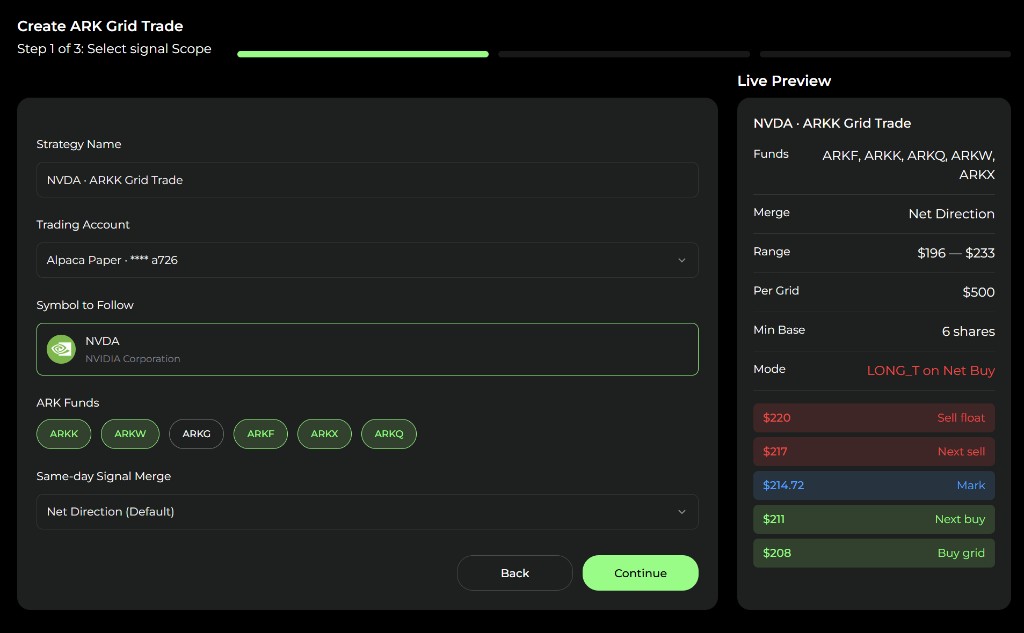
Step 1: Select signal scope
- Strategy Name — defaults to something like
NVDA · ARKK Grid Trade - Trading Account — the connected US stock broker account (via SnapTrade) that will receive the grid orders
- Symbol to Follow — carried over from the signal; it can't be changed here
- ARK Funds — choose from ARKK, ARKW, ARKG, ARKF, ARKX, and ARKQ; the signal's source funds are preselected
- Same-day Signal Merge — how the funds' disclosures are combined:
- Net Direction (Default)
- At least 2 funds aligned
- Skip if conflicted
The preview shows the merge method and the current mode, such as LONG_T on Net Buy.
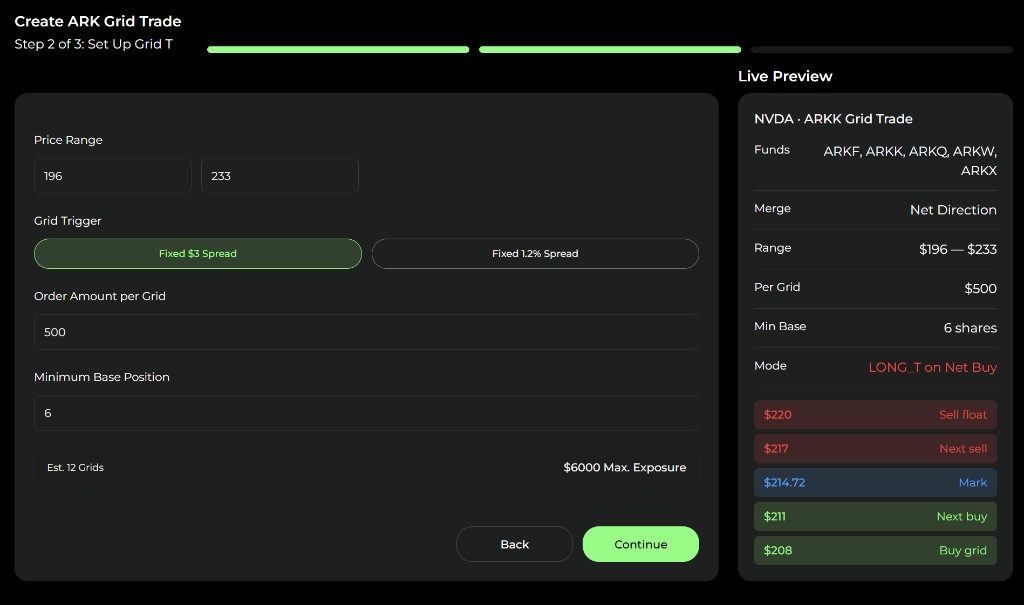
Step 2: Set up the grid
- Price Range — the lower and upper bounds of the grid
- Grid Trigger — the spacing between grid levels: Fixed $3 Spread or Fixed 1.2% Spread
- Order Amount per Grid — how much each level buys; it must be at least enough to buy one share at the bottom of the range
- Minimum Base Position — a number of shares the grid will never sell. The strategy does not buy these shares for you
The preview estimates the number of grids and the maximum exposure. The range must contain at least two grid levels.
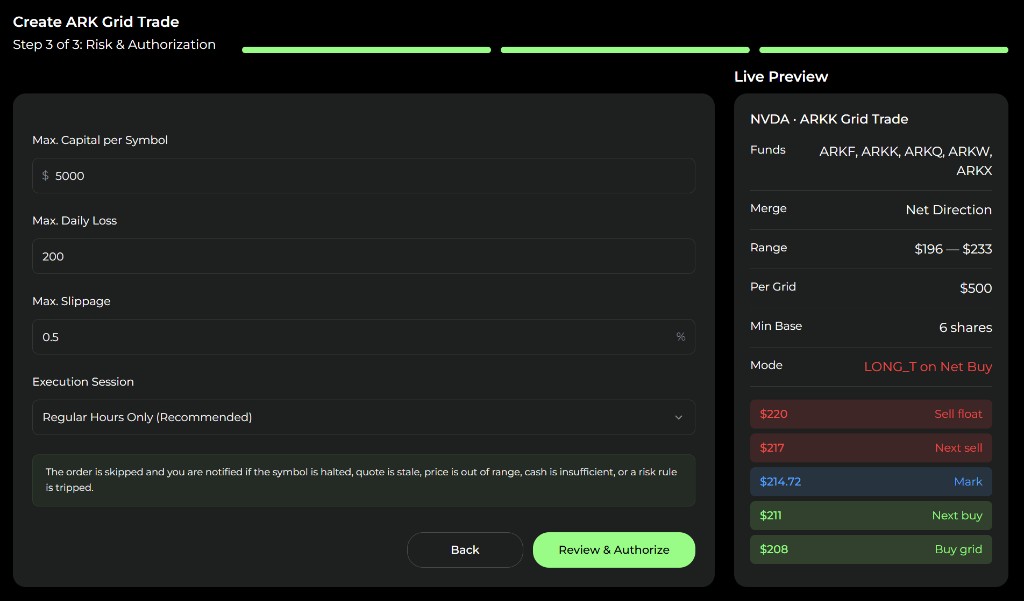
Step 3: Risk and authorization
- Max. Capital per Symbol
- Max. Daily Loss — when reached, new orders pause and resume automatically on the next trading day
- Max. Slippage
- Execution Session — orders are placed during regular US market hours; keep Regular Hours Only (Recommended)
Orders are skipped if a symbol is halted, quotes are stale, price is out of range, cash is insufficient, the position would fall below your minimum base shares, or a risk rule or trade-count limit is tripped.
Execution Preview
Review the summary and click Confirm & Start Strategy. Things to know:
- You can have only one active ARK strategy per ticker per account. To run a second grid on the same ticker, use a different account.
- The capital you allocate to all copy trades and grids on one account can't exceed that account's total assets.
5. My Strategies and stopping a strategy
The My Strategies tab lists your Running strategies and History, with totals for strategies, position value, and total grid P&L. A strategy whose signal has expired is marked Signal expired.
Open a strategy to see Grid P&L, Position Value, Available Limit, Min Base, and estimated grids, a 1D / 30D chart, and Orders, Signals, and Audit Log tabs. Status can be Pending, Running, Paused, Risk Halt, Pending Issue, Stopping, or Stopped. If the strategy's positions get out of sync with your account (Pending Issue), a Resync action appears.
There is no edit or pause button. To end a strategy, click Stop Strategy and choose how to handle the grid position:
- Take Over (default) — cancel the orders and leave the grid-built shares with you
- Sell All — cancel the orders and market-sell the grid position (no max-slippage protection)
- Default — stop new buys but keep the sell grids working; the strategy may stay in Stopping for a long time
Only shares the grid built are affected, not shares you already held. Stopping is irreversible — to start again, create a new strategy.
6. How to use it
- Open ARK Grid Trade from the home page card or
/ark-copy-t. - Review the disclosures on the Signals tab and confirm whether the combined signal is a buy or a sell.
- Create a strategy for names you want to follow, or open an existing one from a Created row.
- Let the direction drive the grid. On Net Buy, the lower buy grids work; on Net Sell, the upper sell grids work.
- Leave the risk caps in place. Do not override a skipped order if cash, slippage, session, or daily-loss limits blocked it.
7. Final thoughts
ARK Grid Trade is for users who want ARK's buy / sell bias without copying every trade at market. Its value comes from the two-step rule: judge the net direction first, then hang the matching buy or sell grids around the current price.
Past performance does not guarantee future results. Nothing here is investment advice.
This page is available as plain Markdown at https://alphio.ai/docs/discover/ark-grid-trade-tutorial.md. An index of every page, with a one-line summary each, is at https://alphio.ai/docs/llms.txt.