Robinhood Connection
Connect your Robinhood agentic account to Alphio through a short authorization flow, then finish setup by pasting the Robinhood callback URL back into the link modal.
Watch the demo: Robinhood agentic account connection
Find it at: Profile → Account → Connect (or New account) → Connect Brokers → the Robinhood Agentic card → Connect, which opens the Link Account modal.
Important: this setup must be completed on a desktop browser. The authorization finishes on a local callback URL that you copy out of the address bar, which cannot be done on mobile. If you tap Connect in a mobile browser or in the Alphio mobile app, Alphio shows a tip telling you to switch to a desktop browser instead — the mobile app cannot link Robinhood.
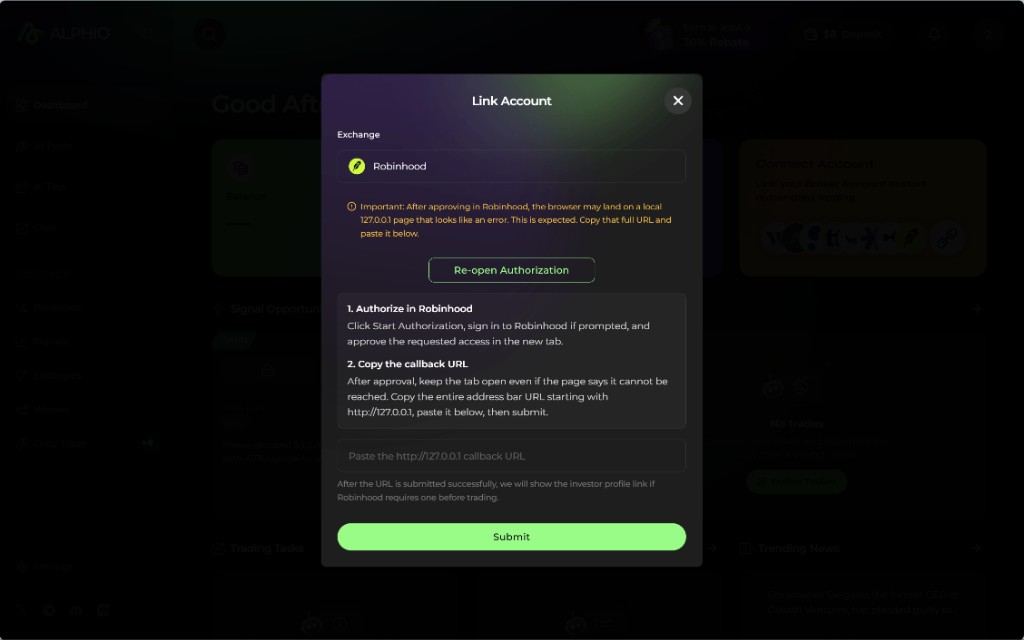
Important: after you approve access in Robinhood, the browser may land on a
127.0.0.1page that looks broken or says it cannot be reached. This is normal. The page itself does not need to load successfully. Just copy the full URL from the address bar and paste it back into Alphio.
1. What this connection does
Robinhood is connected through a dedicated Alphio integration, not through a broker aggregator. Connecting it lets Alphio use your Robinhood agentic account as the execution account for supported Agentic Trading flows.
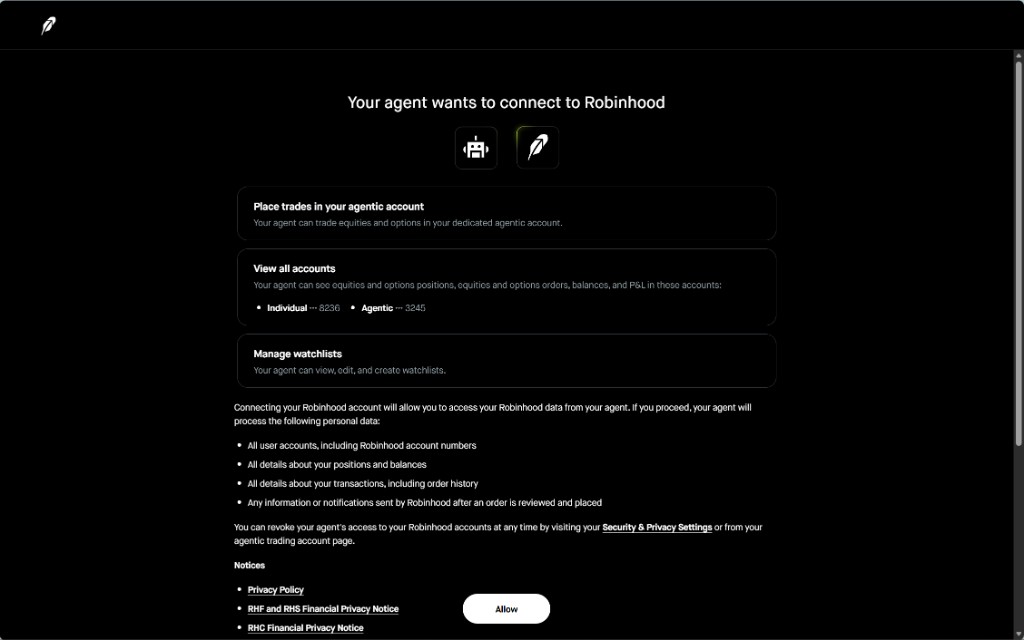
In the Robinhood authorization screen, the requested access covers:
- Place trades in your agentic account - trading equities and options in your dedicated agentic account
- View all accounts - positions, orders, balances, and P&L across your listed accounts
- Manage watchlists - viewing, editing, and creating watchlists
The exact permission wording is shown by Robinhood during the approval step. Always review that page before continuing.
2. Before you start
Before opening the Robinhood flow, make sure:
- you are on a desktop browser - this flow cannot be completed on a phone or tablet
- you have a Robinhood account that supports the agentic account connection flow
- you are signed in to Alphio
- you do not already have a Robinhood account linked to Alphio - only one can be linked at a time
- pop-ups or new-tab authorization flows are not blocked by your browser
- you are ready to copy and paste a URL from the browser address bar
This flow is slightly different from a standard OAuth redirect because Robinhood only accepts a local 127.0.0.1 callback URL, so the last step is manual.
3. Step-by-step connection flow
- In Alphio, open Connect Brokers, find the Robinhood Agentic card, and click Connect.
- In the Link Account modal, click Start Authorization.
- A new browser tab opens to Robinhood. If asked, sign in and review the requested access. Robinhood may also ask you to confirm the request in the Robinhood mobile app.
- On Robinhood's permission screen, click Allow to approve the connection.
- After approval, the browser may land on a local page beginning with
http://127.0.0.1. - That page may look broken or show a browser error. This is expected and normal.
- You do not need to fix that page or refresh it. Keep the tab open and copy the entire address bar URL, starting with
http://127.0.0.1. - Return to the Alphio Link Account modal.
- Paste the full callback URL into Paste the http://127.0.0.1 callback URL.
- Click Submit.
Don't leave the flow sitting half-finished — the authorization is short-lived. If too much time passes between Start Authorization and Submit, start over from Start Authorization.
If the submission succeeds, Alphio completes the connection. Robinhood requires an investor profile questionnaire before further trading on an agentic account; if it applies, Alphio shows you that link right after submission.
4. The important 127.0.0.1 step
This is the step most users get confused by.
After you approve access in Robinhood, the browser may open a local callback page that:
- shows
127.0.0.1in the address bar - looks blank
- says the page cannot be reached
- appears to be an error page
That does not mean the authorization failed.
What matters is the URL itself, not whether that page renders correctly. Alphio needs that full callback URL to finish linking your Robinhood agentic account.
If you see a 127.0.0.1 error page, treat it as the final step of the authorization flow, not as a failure. Copy the whole URL exactly as shown in the address bar and paste it back into Alphio.
5. Troubleshooting
If the connection does not complete, check the following:
- Copied only part of the URL - make sure you copied the full
http://127.0.0.1...address, not just the visible beginning - Closed the tab too early - go through Start Authorization again and recopy the callback URL
- Pasted the wrong page URL - only the final local callback URL should be pasted back into Alphio
- Reused an old callback URL - each callback URL works only once. Restart from Start Authorization to get a fresh one
- Took too long - the authorization is short-lived. Restart the flow rather than submitting a stale URL
- Robinhood approval was not completed - restart the flow and confirm you clicked Allow
- Browser blocked the flow - allow pop-ups or new tabs temporarily and retry
- A Robinhood account is already linked - Alphio will not start a new authorization while one is active. Disconnect the existing one first (see below), then re-bind
- You are on mobile - switch to a desktop browser and sign in to Alphio there
If repeated attempts fail, restart the entire connection flow from the Alphio modal instead of reusing an old callback URL.
6. What happens after connection
After the Robinhood agentic account is linked successfully:
- Alphio can use that connected account for supported Agentic Trading workflows
- the connection appears in your account / connection surfaces
- if Robinhood requires an investor profile questionnaire before further trading, complete it - otherwise an upcoming order can be blocked
Only one Robinhood account can be linked at a time. While a linked account is active, Start Authorization will be refused; disconnect the existing account first, then re-bind. If the connection later needs re-authorization, the same flow is reused to reconnect.
Disconnecting
Removing the connection in Alphio (Disconnect on the account) stops Alphio from using the account, but it does not by itself revoke the access you granted in Robinhood. To fully revoke access, also disconnect the agent on the Robinhood side, in the Robinhood app under Settings → Agents. On the web, Alphio reminds you of this with an Action required on Robinhood notice right after you disconnect.
This page is available as plain Markdown at https://alphio.ai/docs/agentic-trading/robinhood-connection.md. An index of every page, with a one-line summary each, is at https://alphio.ai/docs/llms.txt.