Connect your broker
Connect a brokerage account so Alphio can trade US stocks for you. How you connect depends on your broker, and crypto doesn't need a broker at all.
Find it at: Profile → Account → Connect (or New account if you already have one), which opens Connect Brokers. You can also get there from the Brokers module on the home page (More). On the mobile app, use Connect account in the account switcher.
| You want to… | Connect via | Path |
|---|---|---|
| Trade US stocks on Robinhood | Robinhood's own dedicated flow (not SnapTrade), desktop browser only | See section 2 |
| Trade US stocks on another broker | SnapTrade: Webull, Public, tastytrade, Moomoo, Trading 212, E-Trade, Wealthsimple | See section 3 |
| Trade crypto (perps, prediction markets, tokens) | No broker. Use your Alphio wallet and Deposit | See section 4 |
The Connect Brokers list in the product is always the authoritative list of what you can connect.
1. Why connect
Connecting a brokerage account lets Alphio:
- place stock orders in that account — orders you confirm, or ones from automations you set up;
- pull your live positions and P&L into your portfolio and into research / Agentic Trading context.
Without a connection you can still chat and research — you just can't place stock orders.
2. Robinhood — its own flow
Robinhood does not go through SnapTrade. It has a dedicated Alphio integration, the Robinhood Agentic card, with its own connection flow. You have to finish it in a desktop browser, because the last step copies a 127.0.0.1 callback URL out of the address bar. On mobile web and in the app, Alphio shows a tip asking you to switch to a desktop browser.
The steps:
- Open Connect Brokers, find the Robinhood Agentic card and click Connect.
- Click Start Authorization and approve access in the Robinhood tab that opens.
- Copy the full
127.0.0.1URL you land on and paste it back into Alphio.
Only one Robinhood account can be linked at a time.
Full step-by-step, including the investor-profile step Robinhood may require: Robinhood Connection.
3. Other stock brokers — via SnapTrade
For Webull, Public, tastytrade, Moomoo, Trading 212, E-Trade, and Wealthsimple, Alphio connects through SnapTrade, our brokerage integration partner:
- Open Connect Brokers.
- Pick your broker from the list. Use Search broker to filter.
- Alphio opens the SnapTrade connection portal in a new tab or window. SnapTrade hosts it, not Alphio, so you sign in with your broker directly.
- Log in with your broker credentials and approve the permissions SnapTrade requests. These include trading access, so Alphio can place orders.
- The portal closes and you return to Alphio.
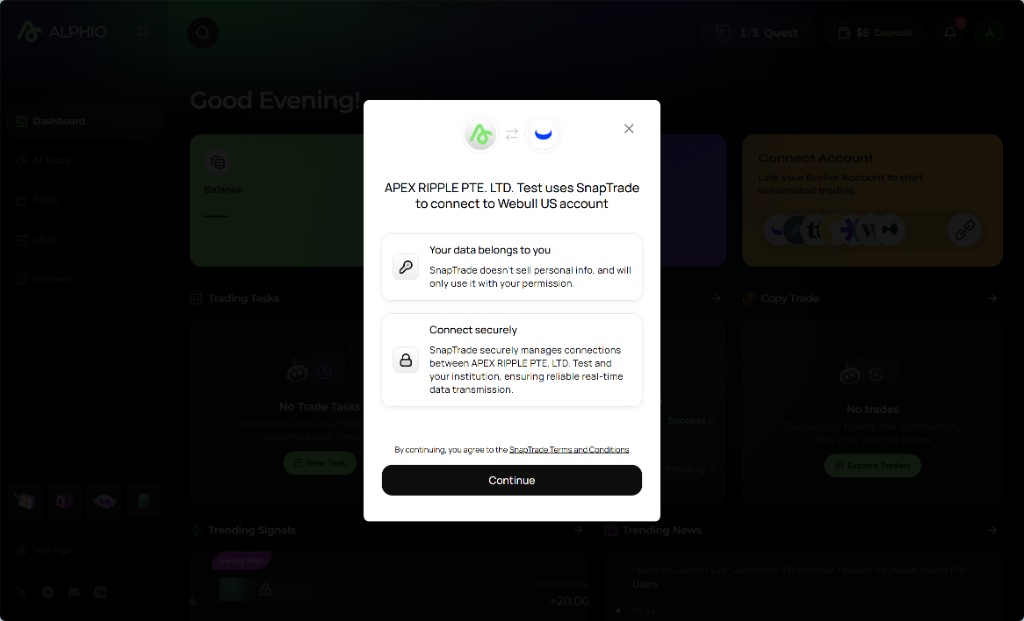
Your connection appears once your broker confirms it, usually within seconds and occasionally longer. Balances and positions are fetched live from your broker, so the account may look empty right after connecting. Refresh after a moment. If the connection never appears, run the connection flow again.
4. Trading crypto — no broker needed
Crypto exchanges are no longer offered in Connect Brokers. Crypto trading in Alphio runs on your Alphio wallet, a non-custodial embedded wallet Alphio creates for you:
| Market | Venue | How to start |
|---|---|---|
| Crypto perpetuals | Hyperliquid | Deposit into Perps. Trading is enabled the first time you deposit or trade |
| Prediction markets | Polymarket | Connect Polymarket, then deposit into Predictions |
| Tokens | Solana | Deposit into Tokens |
See Connect on-chain for the full flow. If you connected KuCoin, OKX or Kraken earlier, that account stays visible in your accounts. Unbinding it removes only Alphio's side; delete the API key or revoke the authorization on the exchange yourself.
5. Disconnect or reconnect
- Disconnect — open the connected account's actions and choose Disconnect, then confirm. Trading and portfolio data stop syncing until you connect again.
- Robinhood: Alphio shows a reminder to also disconnect the agent in the Robinhood app (Settings → Agents). That fully revokes access.
- Reconnect — if a broker connection needs re-authorization, Alphio shows Some broker connections need reauthorization, and the broker row offers Reconnect. Alphio can't place trades in that account until you reconnect.
6. What Alphio can and can't do
| Surface | Alphio access |
|---|---|
| Positions, balances, history | Read — used for your portfolio view, P&L, and research context |
| New orders | Placed only when you confirm them, or by an automation you set up (Auto Trade, Agentic Trading, copy trading, or a scheduled or triggered trade task you set up in chat), which you can stop at any time |
| Moving money in or out of your brokerage account | Not possible — deposits and withdrawals happen in your broker's own app |
| Credentials (username / password) | Never seen — login happens in Robinhood's or SnapTrade's own pages; Alphio only stores the resulting authorization |
This page is available as plain Markdown at https://alphio.ai/docs/get-started/connect-your-broker.md. An index of every page, with a one-line summary each, is at https://alphio.ai/docs/llms.txt.