Profile and Settings
Manage your profile — avatar, nickname, bio, handle, email, UID — and your settings for language, notifications, and Telegram.
Find it at: /account/profile (web: avatar menu → Your profile; settings: avatar menu → Setting).
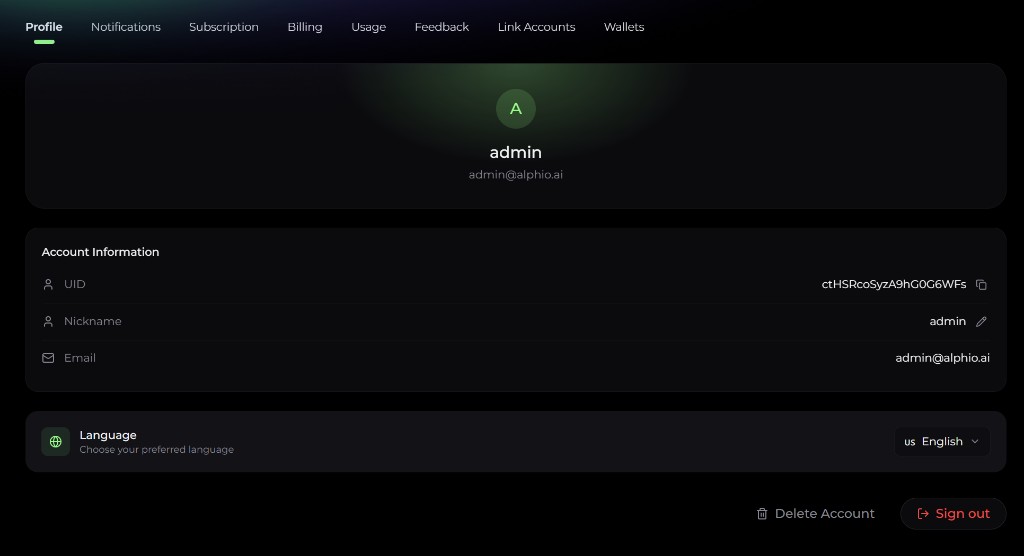
1. Profile fields
On the web, Your profile shows your account and your Square posts. Click Edit to open the Edit profile dialog:
| Field | Editable | Notes |
|---|---|---|
| Avatar | Yes | Upload an image file up to 5 MB. Synced across web, mobile web, and the app. |
| Nickname | Yes | Up to 32 characters. |
| Bio | Yes | Up to 200 characters, shown on your Square profile. |
| Handle | Read-only | Your @handle in Square. It can't be changed. |
| UID | Read-only | Your account ID. Use the copy button when contacting support. |
| Read-only | Your login identifier and the address for transactional emails. There is no self-service email change. |
Your avatar and nickname appear across the product — chat, Square, leaderboards, and so on. Nicknames are checked before they appear in Square; if a new nickname isn't accepted there, Square keeps showing your previous one.
2. Changing your password
There is no password section on the Profile page. If you signed up with email + password and want to change it, use the Forgot password flow from the sign-in page:
- Sign out (or open the sign-in page in a private window).
- Click Forgot password and enter your registered email.
- A verification code is emailed to you.
- Enter the code and set a new password.
Changing your password this way does not sign you out of your other devices — existing sessions stay valid until they expire on their own. If you need every device signed out (for example after a suspected compromise), contact support.
3. Sign-in methods
Which sign-in options you see depends on the surface:
| Method | Web (PC / H5) | iOS app | Android app |
|---|---|---|---|
| Email + password | Yes | Yes | Yes |
| Yes | Yes | Yes | |
| Apple | — | Yes | — |
There is no link / unlink UI in Alphio today — you can't add or remove a sign-in method from the Profile page. Your account is tied to the method you registered with. If you need a sign-in method changed, contact support.
4. Language preference
Switch the interface language under Language in Settings (web: avatar menu → Setting). The web app ships 6 locales:
| Locale | Language |
|---|---|
en | English |
zh | Simplified Chinese (简体中文) |
zh-TW | Traditional Chinese (繁體中文) |
es | Spanish (Español) |
ja | Japanese (日本語) |
de | German (Deutsch) |
The mobile app ships a different set: English, Arabic, Spanish, French, Italian, Japanese, Portuguese, Simplified Chinese, and Traditional Chinese. Note the app has no German, and the web has no Arabic / French / Italian / Portuguese — so the language you pick on one surface may not exist on the other.
5. Theme
The Alphio web app runs in Dark theme, which is the default for every account.
The theme setting is stored per-device (in local browser storage), not on your account, so it doesn't follow you across PC / H5 / mobile.
There is currently no theme switcher in the web UI — not on the Profile page, and not elsewhere. Light and System modes exist in the underlying theming layer but have no user-facing control yet, so don't expect to be able to switch to a light interface today.
6. Settings
The Settings dialog on the web (avatar menu → Setting) groups:
- Language — see section 4.
- Telegram — link Alphio's Telegram bot; see Connect Telegram.
- Notifications — category switches and channels; see Notifications Settings.
- Muted and blocked — accounts you muted or blocked in Square.
- Security — authenticator app and withdrawal address settings for your Alphio wallet.
On mobile web, the Account tab lists Muted and blocked, Notifications, Telegram, and Language. In the app, they're listed on the Profile page (Notifications, Muted and blocked, Telegram, Language).
7. Where to find
- Web (PC) — avatar menu (top right) → Your profile, Setting, or Log Out.
- Mobile web (H5) — bottom Account tab; Log Out is at the bottom of the page.
- App — tap your avatar on the Account tab to open Profile. Your nickname, avatar, UID, and email are edited under Account & Security (from your own Square profile, tap Edit profile).
Account deletion is not available on the web — see Delete Account for the paths that do work.
This page is available as plain Markdown at https://alphio.ai/docs/account/profile-and-settings.md. An index of every page, with a one-line summary each, is at https://alphio.ai/docs/llms.txt.