Hyperliquid perpetuals
Trade perpetual futures on the Hyperliquid exchange, long or short with leverage, from the Hyperliquid account of your Alphio wallet.
Find it at: Crypto Trade ▸ Perps on the web (/crypto-trade/perps; a market opens as /crypto-trade/perps?perp=BTC), or Trade ▸ Perps in the mobile app.
1. Markets
The Perps list shows every perpetual market Hyperliquid lists, filtered by Watchlist, All, Crypto, Stocks, Commodities, Indices, FX and Pre-IPO. Each category is sorted by 24-hour volume.
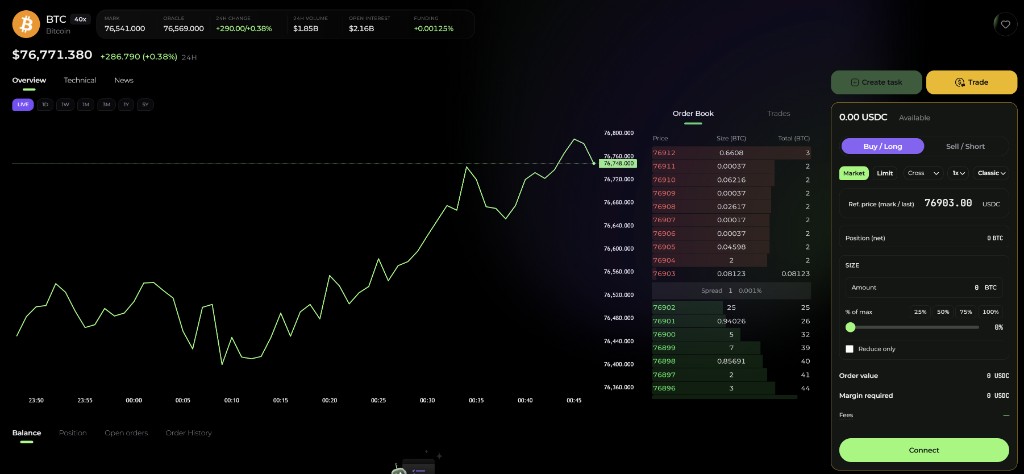
Selecting a market opens its page: price chart, market stats (mark and oracle price, 24h change, volume, open interest, funding), and tabs for Holders, Swaps and Thesis — the positions, recent trades and written theses of tracked traders on that market — plus order book, recent trades, about, technical and news tabs. The order panel and your own position in that market sit on the right.
2. Availability
Hyperliquid is not offered in the United States, mainland China, Macau, Myanmar, Cuba, Iran, North Korea, Syria, Ontario and parts of Ukraine. In those regions the order button is replaced by a notice that trading isn't available in your region.
3. Funding and trading access
Perps trade from the Hyperliquid account of your Alphio wallet, with USDC as margin.
- Deposit. If you haven't set up Perps trading yet and your Perps balance is empty or too low, the panel's main button becomes Deposit, which opens the deposit panel. After that, use the Deposit link next to your available balance. When a transfer from another Alphio balance (for example your Tokens balance) is available and covers the shortfall, the button shows Transfer cash instead.
- Trading access. The first time you deposit or place an order, Alphio sets up trading access on Hyperliquid for you — an agent approval and Alphio's builder-fee approval — without a wallet pop-up. If that can't be done automatically, a step-by-step setup dialog opens instead.
- What the access can do. It lets Alphio place and cancel orders for your account. It cannot withdraw funds.
See Connect on-chain for the Alphio wallet, and On-chain deposits and Withdrawals for moving funds in and out.
4. Placing a perp order
| Control | What it does |
|---|---|
| Buy / Long, Sell / Short | Direction |
| Market / Limit | Market orders execute immediately against the book (immediate-or-cancel). Limit orders rest at your price until filled or cancelled (good-till-cancelled). On the web the limit price is pre-filled with the current price |
| Order settings (gear icon) | Margin mode (Cross / Isolated), Leverage, and Account mode (Classic / Portfolio Margin). The current values are shown next to the gear |
| Amount | On the web, the position size in the coin (for example BTC). In the mobile app, the margin in USD, with the resulting position size shown underneath |
| 25% / 50% / 75% / 100% | Fill the amount from your available balance at the current leverage. If you already hold a position and trade the opposite way, the percentages are of that position — 100% closes it |
| Reduce only | The order can only shrink an existing position, never open or flip one |
Below the inputs, Order value is the position's notional value — price × size, not margin. Expanding it shows Margin required and your taker / maker Fees rate. An Est. fee line shows the estimated fee for opening, and for a round trip (open and close), as a share of the position size.
The leverage editor shows the market's maximum. On Hyperliquid, larger positions can have a lower maximum leverage, so the selectable maximum can drop as your order size grows. Most stock and other non-crypto markets are isolated-only.
Account mode switches your Hyperliquid account between Classic (each collateral asset has a separate balance) and Portfolio Margin (spot and perps margined together). On the web, changing it asks for a signature from a browser wallet extension (such as MetaMask), so it can't be changed for an account that only uses the Alphio wallet. Hyperliquid limits Portfolio Margin by account size.
Take-profit and stop-loss can't be set in the order panel on the web or in the app. You can ask Alphio AI in chat to prepare an order with a take-profit and/or stop-loss; it shows the plan for you to review and confirm before anything is placed.
5. After a fill: trade posts
When a perp order fills, a Share this trade box opens. Your trade is posted to Square as a trade card; you can add your own take, or skip — skipping still posts the trade card on its own. A limit order is posted once it fills.
6. Managing positions
Your open position appears under the order panel and on your account page, with size, entry price, unrealized P&L and liquidation price.
- Close — sends a reduce-only market order for the whole position. The fill price can differ from the mark price.
- Close All — closes every open position at market, one order at a time. A position that fails to close stays open.
- Reduce part of a position — place an opposite order with Reduce only ticked, or use the percentage buttons.
- Cancel resting orders — from the open-orders list.
7. Liquidation
If your margin falls below Hyperliquid's maintenance margin, the position is liquidated by Hyperliquid, not by Alphio. Maintenance levels, partial-liquidation behaviour and fees vary by market.
Alphio does not send liquidation warnings — see Liquidations.
8. Funding and fees
Perpetual contracts exchange a periodic funding rate between longs and shorts, settled in USDC against your margin. The market page shows the current funding rate.
Each order pays Hyperliquid's trading fee plus Alphio's builder fee; the estimate is shown in the panel before you submit. See Trading fees.
This page is available as plain Markdown at https://alphio.ai/docs/trade/hyperliquid-perpetuals.md. An index of every page, with a one-line summary each, is at https://alphio.ai/docs/llms.txt.