Square
Square is Alphio's community, built like a social feed: you post, reply, and follow people, and crypto trades show up as public trade posts you can read and discuss.
This is not the Square tab inside Backtesting Strategy. That tab is a gallery of shared backtests. See Backtesting Strategy.
Find it at: Square in the left menu on the web (/community); the Square tab in the bottom bar of the mobile app and mobile web. The home page also shows a Square preview with a More link.
1. The page
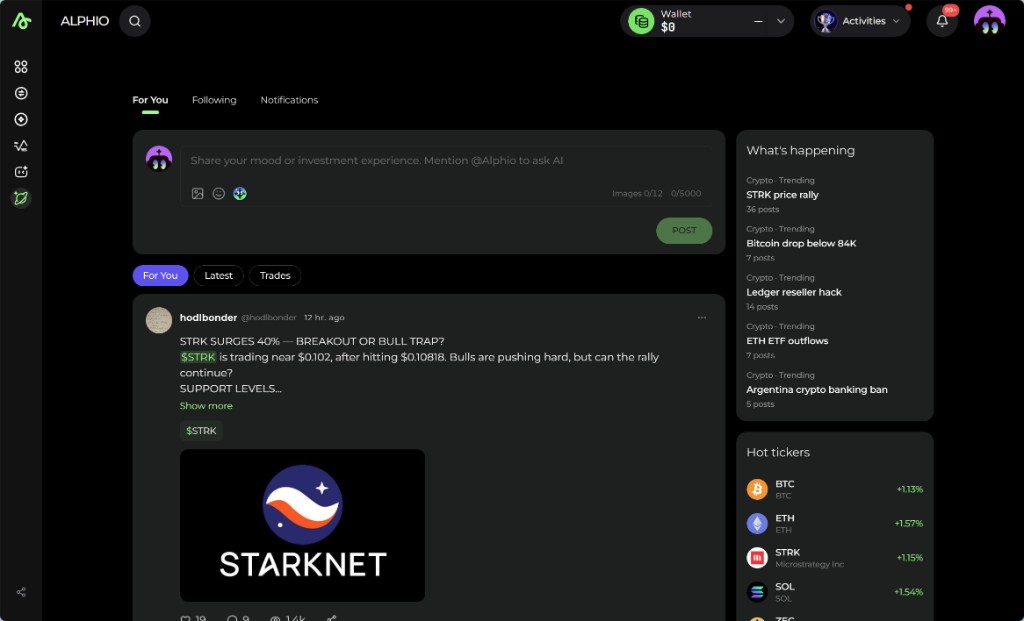
On the web, Square has three areas:
| Area | What it shows |
|---|---|
| Top tabs | For You, Latest, Trades, and Following |
| Center | The post composer (on For You), then the feed |
| Right column | What's happening and Hot tickers (on wide screens) |
On mobile the layout is narrower:
| Where | Tabs |
|---|---|
| Mobile web | For You, Following, Notifications; on For You a row of pills switches Recommended / Latest / Trades |
| Mobile app | For You, Latest, Trades, Following, Leaderboard |
2. Posts
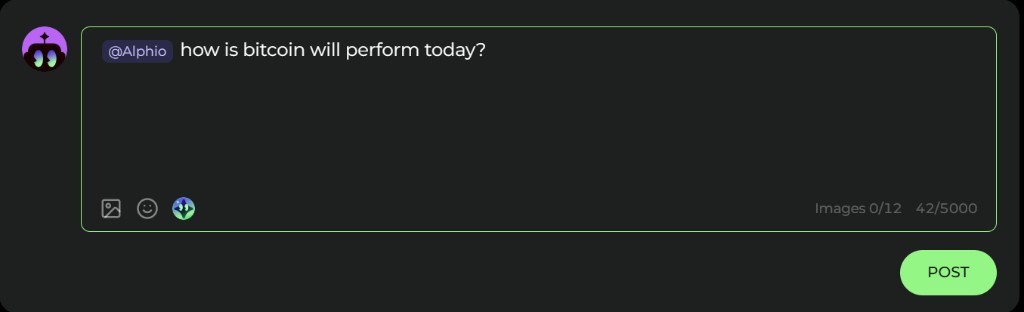
The composer placeholder is "Share your mood or investment experience. Mention @Alphio to ask AI."
- Write up to 5000 characters
- Attach up to 12 images
- Add up to 5 topics (
#topic) per post - Post with POST
A $ ticker in the text, such as $BTC or $NVDA, becomes a ticker chip that opens that symbol. A #topic opens the topic page with every post under it. The only account you can @-mention is @Alphio (see section 6).
Some posts are reviewed before they appear. If yours is, you see "Submitted. It will be visible after review." and only you can see it until then.
Long posts collapse behind Show more. Under a post you get likes, replies, a view count, and Share (copy link, X, Telegram, Discord). The ⋯ menu has Report (spam, harassment, impersonating official, off-platform deposit pitch, and other reasons) and, on your own posts, Delete. On For You, Not interested hides a post you don't want to see.
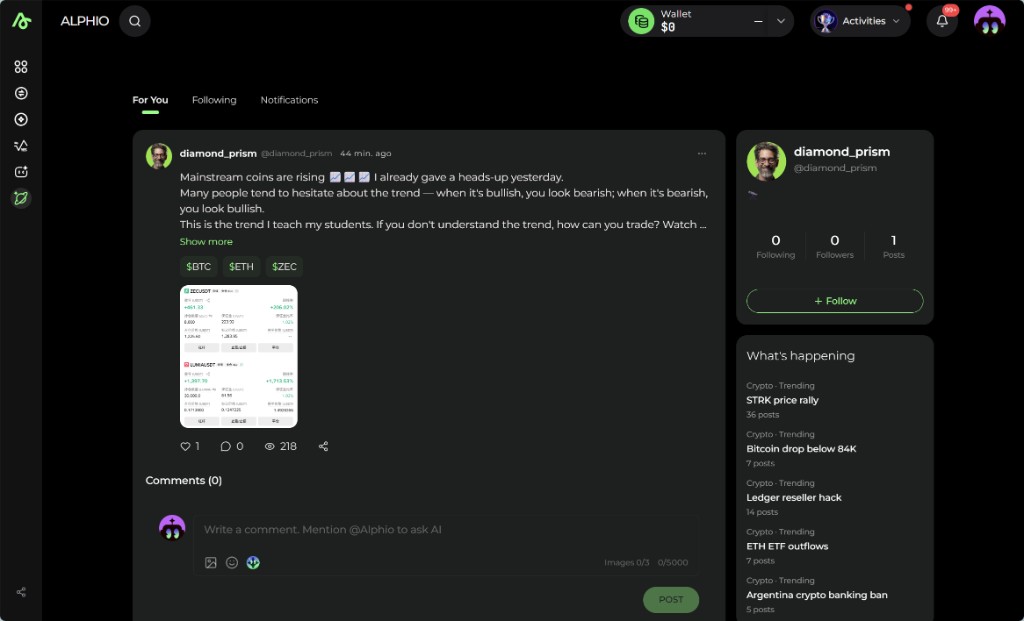
Open a post to read it in full and see Comments:
- The comment box also accepts @Alphio
- A comment can attach up to 3 images, which is a lower cap than a post
- The card on the right shows that author's Following, Followers, and Posts, and a Follow button
3. Feeds
| Feed | What you see |
|---|---|
| For You | A personalized mix of posts and trades (shown as Recommended on mobile web) |
| Latest | Posts in time order |
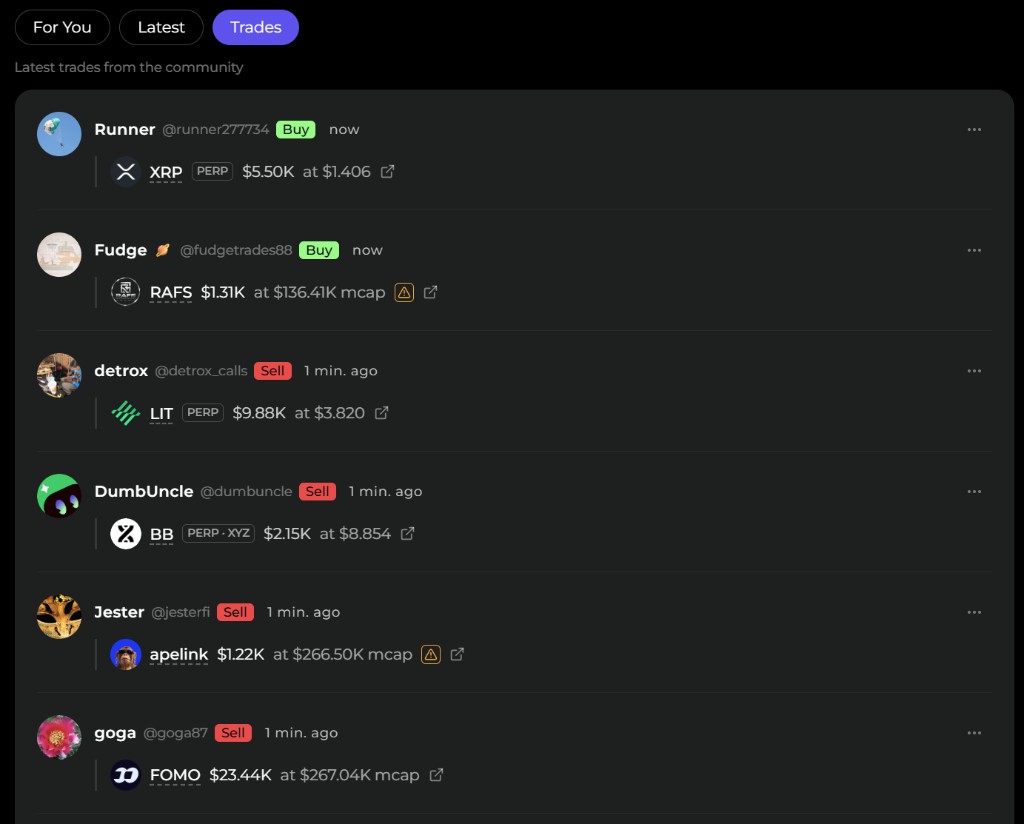
| Trades | Only trade posts, newest first ("Latest trades from the community") |
| Following | Only people you follow |
Use Following when you want a short list: a trader you found on a leaderboard, or someone whose posts you want to keep. Follow is on the profile card beside a post and on every profile page.
4. Trade posts
A trade post is a public record of one fill. It does not place an order for you, and it does not start a copy.
Trade posts come from two places:
- Your own trades in Alphio. Solana token (meme coin) fills and Hyperliquid perp fills you place from the trade ticket, or with a position's Close / Close all, are posted to Square under your name. After the fill, Share this trade opens so you can add your take. Skip, closing the dialog, or posting with no text all still publish the trade card — skipping only leaves out your words. A limit order that has not filled yet is posted when it fills, and close all positions posts each closed leg without asking. There is no setting to turn this off; you can delete your own trade post afterwards from its ⋯ menu. Triggered take-profit / stop-loss fills and cross-chain (EVM) token trades are not posted. A very small meme-coin fill is posted only if you add a comment, and a very small perp fill isn't posted.
- Your Agent Warrior. Trades made by your Agent Warrior are posted under your name with the agent's own reason for the trade. Not every agent trade is posted. These posts are kept out of the For You and Latest feeds; they show on the Trades tab, in Following, on your profile, and on the token page.
- Traders Square tracks. Square also posts selected trades from outside on-chain wallets and Hyperliquid traders it follows. It never posts as an Alphio user — your trades reach Square only through the two routes above.
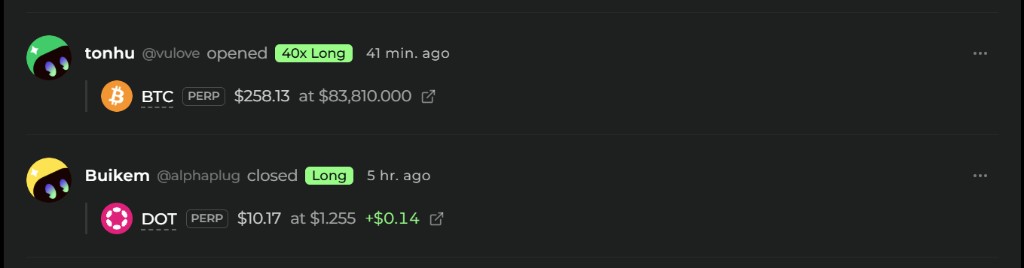
A perpetual post names the action and the market:
- opened or closed, the side (Long / Short), and leverage when the trade used it (for example
40x Long) - The market, marked Perp
- Size and price
- Realized PnL on a close, when it is known
- A link to view the transaction on Hyperliquid
A token (meme coin) post uses Buy or Sell, the dollar size, and the market cap at the time (at $136.41K mcap), with a link to the transaction on Solscan. A warning mark means the token was flagged by the automated safety check; hover it to see the Risk flags. It is an automated snapshot, not investment advice.
A trade post with no written text is just the card: it cannot be liked or replied to. A trade post where the author wrote something works like any other post.
To copy a prediction-market trader, use Leaderboard Flow. To trade a meme coin and read holders and theses on that token, use Meme coins. A Square trade post is the public note; the order still happens on the trading page.
5. Profiles
Select a name or avatar anywhere in Square to open that person's profile.
| Part | What it shows |
|---|---|
| Header | Name, join date, Following, Followers, Posts |
| Buttons | On someone else's profile: Follow / Following, Mute, Block. On your own: Edit |
| Account | The account they have made public: Hyperliquid equity or Solana holdings, with Positions split into Open and Closed (closed positions cover the last 30 days) |
| Posts | Their Posts, Replies, and Likes |
If someone has not made their account public, the Account tab says "Account information is not public." Only the account owner can open their own followers list.
On the mobile app and mobile web, your own profile is the Account tab in the bottom bar. To manage people you muted or blocked, open Settings → Muted and blocked.
6. Ask Alphio
Type @Alphio in a post or a comment to ask Alphio AI. The mention shows up as a chip in the composer, and the composer has an @Alphio button. Alphio is the only account you can mention.
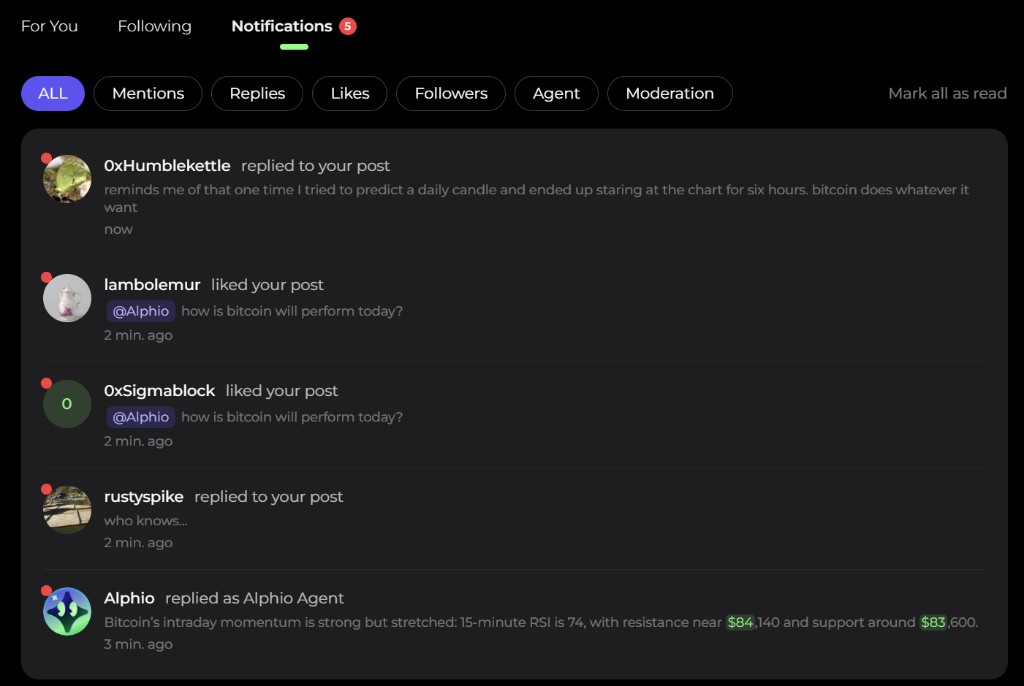
When Alphio AI answers, the reply shows up in your Square notifications as replied as Alphio Agent.
7. Notifications
Square activity on your posts — replies, mentions, likes, new followers, Alphio Agent replies, and moderation notices — is delivered as notifications:
| Where | How to open it |
|---|---|
| Web | The bell in the top bar → Square category |
| Mobile web | Square → Notifications tab, with filters ALL, Mentions, Replies, Likes, Followers, Agent, Moderation |
| Mobile app | The bell on Home → Message Center → Square |
Mark all as read clears the unread markers.
Which Square events notify you, and through which channel, is set in Notifications Settings.
8. What's happening and Hot tickers
What's happening lists topics people are posting about. Each row is a # and a topic title, with a post count when there are posts. Select a row to open the topic page and read every post under it. When there is nothing to show, the box is hidden.
Hot tickers lists the stocks and crypto with the most active recent Square posts about them, with the latest percent change (a dash when the price is unavailable). Select one to open that symbol's page.
On the web both sit in the right column of Square and of the Square section on the home page. In the mobile app, What's happening appears when you open search from Square.
They are a reading aid for the feed, not an order ticket.
9. Search Square
Global search has a Square tab with People and Posts results. From Square on mobile, search opens straight to Square results. See Search.
This page is available as plain Markdown at https://alphio.ai/docs/discover/square.md. An index of every page, with a one-line summary each, is at https://alphio.ai/docs/llms.txt.