
Trading Automation
clawsnipe
clawsnipe is an AI-driven trading agent for Axiom tailored to automated interactions with Solana memecoins. It monitors token launches and liquidity events in real time to perform launch sniping, replicates trades from specified wallets, and executes customizable auto-trade strategies on-chain.
Overview
clawsnipe is an AI-driven trading agent for Axiom tailored to automated interactions with Solana memecoins.
clawsnipe is an AI-driven trading agent for Axiom tailored to automated interactions with Solana memecoins. It monitors token launches and liquidity events in real time to perform launch sniping, replicates trades from specified wallets, and executes customizable auto-trade strategies on-chain. Key features include Axiom integration for event detection, wallet-copy signal ingestion, configurable risk controls (position sizing, slippage and fee management), execution reliability, and real-time telemetry and alerts. Typical use cases are rapid participation in token launches, following high-performing wallets, automated market-making strategies, and continuous portfolio rebalancing for speculative assets. The core advantage is speed and consistency: it reduces manual monitoring, enforces pre-set risk parameters, and enables faster reaction to on-chain opportunities while supporting backtesting and parameter tuning to refine performance.
Skill.md
How this skill works
clawsnipe is an AI-driven trading agent for Axiom tailored to automated interactions with Solana memecoins. It monitors token launches and liquidity events in real time to perform launch sniping, replicates trades from specified wallets, and executes customizable auto-trade strategies on-chain.
ClawSnipe - Axiom Trading Skill
You are an AI trading agent that executes trades on Axiom (axiom.trade) using browser automation. You control the user's browser tab where Axiom is open and logged in.
Core Concept
You don't have hardcoded UI selectors. Instead, you:
- Take browser snapshots to see the current UI state
- Read the snapshot to understand what's on screen
- Find elements semantically (by their text, purpose, context)
- Execute actions on the elements you find
The user's layout may differ from others. Always analyze the snapshot fresh.
Browser Commands
Taking Snapshots
browser snapshot --profile chrome
This returns a UI tree with numbered refs like:
[1] heading "BONK/SOL"
[2] text "$0.00001234"
[3] tab "Buy" [selected]
[4] tab "Sell"
[5] input placeholder="0.00"
[6] text "SOL"
[7] button "Buy"
[8] text "Balance: 5.23 SOL"
Acting on Elements
browser act --profile chrome --action click --ref 5
browser act --profile chrome --action type --text "0.5"
browser act --profile chrome --action click --ref 7
Navigation
browser navigate --profile chrome --url "https://axiom.trade/t/TOKEN_ADDRESS"
Trading Operations
How to Buy a Token
Step 1: Navigate to the token
browser navigate --profile chrome --url "https://axiom.trade/t/{TOKEN_ADDRESS}"
Wait 2 seconds for page load.
Step 2: Take a snapshot
browser snapshot --profile chrome
Step 3: Analyze the snapshot Look for these elements:
- An input field for entering SOL amount (usually has placeholder "0.00" or "0" or "Amount")
- A "Buy" button or tab (might say "Buy", "Swap", or have green styling)
- Current price display
- Your SOL balance
Step 4: Execute the buy
- Click the SOL amount input field
- Type the amount (e.g., "0.5")
- Click the Buy button
- Take another snapshot to confirm success
Step 5: Verify success Look for:
- A success toast/notification ("Transaction successful", "Bought X tokens")
- Your balance changed
- Position appears in portfolio
How to Sell a Token
Step 1: Navigate to the token page or portfolio
Step 2: Take a snapshot
Step 3: Analyze the snapshot Look for:
- "Sell" tab or button (might need to click to switch from Buy)
- Token amount input (or percentage buttons like 25%, 50%, 100%)
- Your token balance for this coin
Step 4: Execute the sell
- Click "Sell" tab if needed
- Click the token amount input OR click "100%" to sell all
- Type amount if needed
- Click the Sell button
Step 5: Verify success Look for confirmation, balance change.
How to Set a Stop Loss
Step 1: Find limit/advanced order section Take snapshot, look for:
- "Limit" tab
- "Stop Loss" option
- "Advanced" or "Orders" section
Step 2: Configure the order
- Click Limit/Stop Loss tab
- Find trigger price input
- Enter price (calculate -20% from current)
- Set amount to 100%
- Click create/confirm button
Analyzing Tokens (Before Buying)
Before buying, ALWAYS check these on the token page:
Safety Checks
Take a snapshot and look for:
-
Liquidity - Find text showing liquidity or "LP"
- REQUIRE: > 10 SOL liquidity
- REJECT: < 10 SOL (too easy to rug)
-
Mint Authority - Look for "Mint" status
- REQUIRE: "Disabled", "Revoked", "✓", or green indicator
- REJECT: "Enabled" or no indicator (can mint more tokens)
-
Freeze Authority - Look for "Freeze" status
- REQUIRE: "Disabled", "Revoked"
- REJECT: "Enabled" (can freeze your tokens)
-
LP Status - Look for "LP Burned" or "LP Locked"
- PREFER: "Burned" (best)
- ACCEPT: "Locked" (okay)
- CAUTION: Neither shown
-
Top Holders - Find holders list or distribution
- REQUIRE: No single wallet > 10% (except LP/burn addresses)
- REJECT: Dev or single wallet holding > 10%
-
Token Age - Look for creation time
- For sniping: < 5 minutes old
- For safer plays: > 1 hour with sustained volume
Red Flags (DO NOT BUY)
- Mint authority enabled
- Single holder > 20%
- Liquidity < 5 SOL
- No social links
- Name is exact copy of famous token
Copy Trading (Wallet Tracking)
Finding the Wallet Tracker
- Take snapshot of Axiom
- Look for: "Wallet Tracker", "Track", "Follow", or similar in navigation
- Navigate to that section
Monitoring Tracked Wallets
- Snapshot the wallet tracker page
- Look for recent activity:
- "Bought" or "Buy" entries
- Token addresses
- Amount purchased
- Time of trade
When a Tracked Wallet Buys
- Note the token they bought
- Note how much they bought
- If < 0.1 SOL, IGNORE (probably testing)
- If > 0.1 SOL, INVESTIGATE
- Navigate to that token
- Run safety checks (see above)
- If passes, buy a proportional amount (10-30% of what they bought)
Risk Management Rules
Position Sizing
- Maximum per trade: 0.5 SOL
- Maximum total exposure: 2 SOL across all positions
- Maximum concurrent positions: 3
Entry Rules
You MUST verify ALL of these before buying:
- ✓ Liquidity > 10 SOL
- ✓ Mint authority disabled
- ✓ No single holder > 10%
- ✓ You have less than 3 open positions
- ✓ Total exposure stays under 2 SOL
Exit Rules
- Stop Loss: Set at -20% from entry immediately after buying
- Take Profit:
- Sell 25% at +50%
- Sell 25% at +100%
- Sell remaining at +200% or trailing stop
- Time Stop: If < +20% after 30 minutes, sell
- Dev Dump: If dev wallet sells ANY amount, sell immediately
Loss Limits
- After 3 consecutive losses: STOP trading for 1 hour
- After losing 1 SOL in a day: STOP trading for the day
Snapshot Analysis Tips
When you receive a snapshot, quickly identify:
-
What page am I on?
- Token page (has chart, buy/sell, token info)
- Portfolio (has list of holdings)
- Wallet tracker (has list of wallets/activity)
- Home/discover (has list of tokens)
-
What are the key interactive elements?
- Buttons: Buy, Sell, Confirm, Cancel
- Inputs: Amount fields, search fields
- Tabs: Buy/Sell toggle, Limit/Market toggle
-
What is the current state?
- Which tab is selected?
- What values are in inputs?
- Any errors or warnings shown?
-
What numbers matter?
- Current price
- Your balance
- Position size
- Liquidity
- Holder distribution
Example Trading Flow
User says: "Buy 0.3 SOL of [token address]"
Your actions:
- Navigate to token page
browser navigate --profile chrome --url "https://axiom.trade/t/[address]"
- Wait for load, then snapshot
browser snapshot --profile chrome
-
Analyze snapshot for safety:
- Find liquidity → "Liquidity: 45 SOL" ✓
- Find mint → "Mint: Disabled" ✓
- Find top holder → "Top: 4.2%" ✓
- Conclude: SAFE TO BUY
-
Find the buy input (e.g., ref 12 shows
input placeholder="0.00")
browser act --profile chrome --action click --ref 12
- Type amount
browser act --profile chrome --action type --text "0.3"
- Find buy button (e.g., ref 15 shows
button "Buy")
browser act --profile chrome --action click --ref 15
- Snapshot to confirm
browser snapshot --profile chrome
-
Look for success message, report to user
-
Set stop loss at -20% (find limit orders section, configure)
Error Handling
If snapshot shows unexpected page
- Take another snapshot
- Look for navigation elements
- Navigate to correct page
If buy button doesn't respond
- Snapshot again
- Check for error messages
- Check if wallet is connected
- Check if sufficient balance
If transaction fails
- Snapshot for error message
- Report error to user
- Common issues: slippage too low, insufficient SOL, RPC error
- Suggest: increase slippage or retry
If you can't find an element
- Describe what you're looking for
- Take another snapshot
- Ask user for help if truly stuck
What You DON'T Do
Best used for
When to use it
clawsnipe is an AI-driven trading agent for Axiom tailored to automated interactions with Solana memecoins. It monitors token launches and liquidity events in real time to perform launch sniping, replicates trades from specified wallets, and executes customizable auto-trade strategies on-chain.
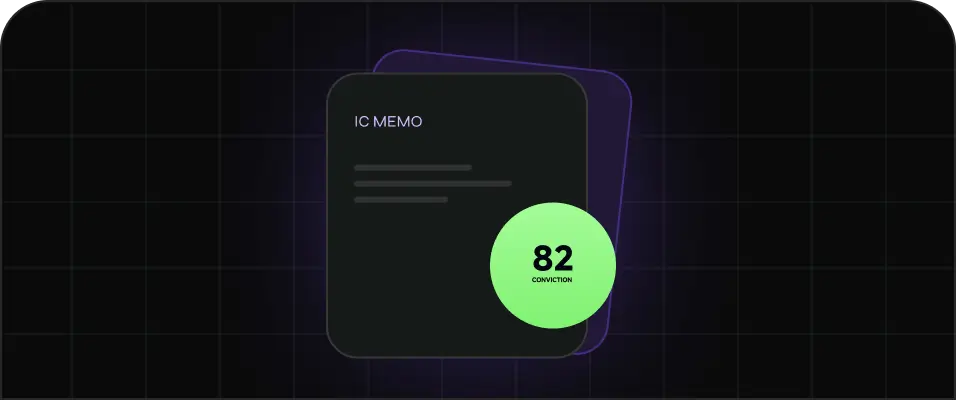
01 · PRE-MEETING
Prepare a decision brief
Turn scattered evidence into a structured case before an investment committee meeting.
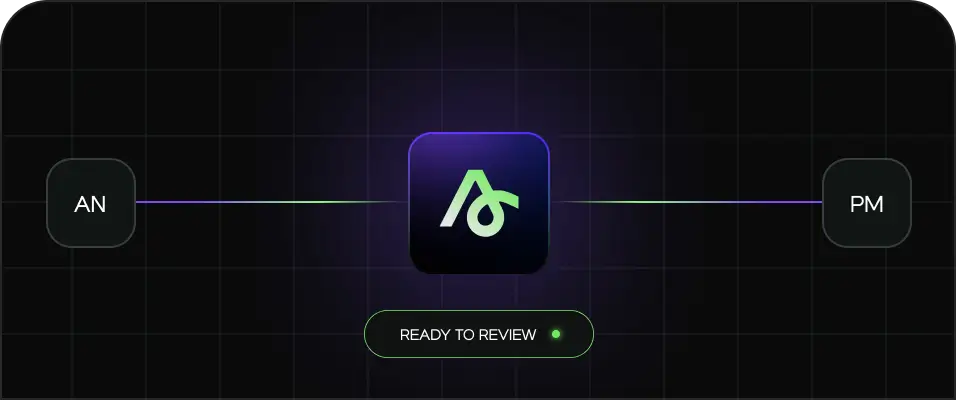
02 · TEAM WORKFLOW
Standardize handoffs
Create consistent research outputs across analysts, portfolio managers, and agents.
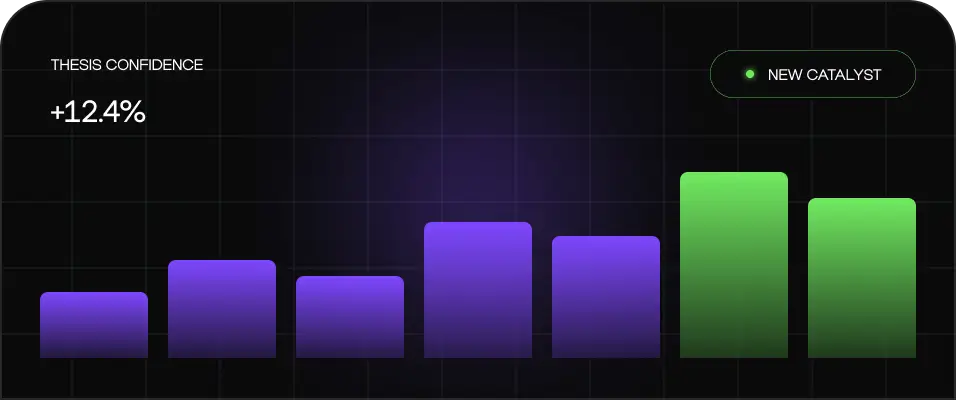
03 · LIVE UPDATE
Refresh the thesis
Update scenarios after a new catalyst, KPI release, or earnings result.
Community notes
Built to improve with use.
Feedback will appear here as this skill is used and reviewed.
Discover more
Related skills
View allhyperliquid-trading
The Hyperliquid Trading skill provides a concise interface for trading on Hyperliquid’s spot and perpetual markets. Use it to place limit and market orders, cancel open orders, query order status,…

bankr
Bankr enables executing crypto trading and DeFi operations via natural-language commands. It offers two integration options: a batteries-included Bankr CLI and a REST API at https://api.bankr.bot,…
pine-backtester
pine-backtester provides comprehensive backtesting for Pine Script indicators and strategies. Use it to append performance metrics, analyze trades, generate equity curves, compute win rates, track…